Cloudflare R2: S3-Compatible Object Storage with Zero Egress Fees
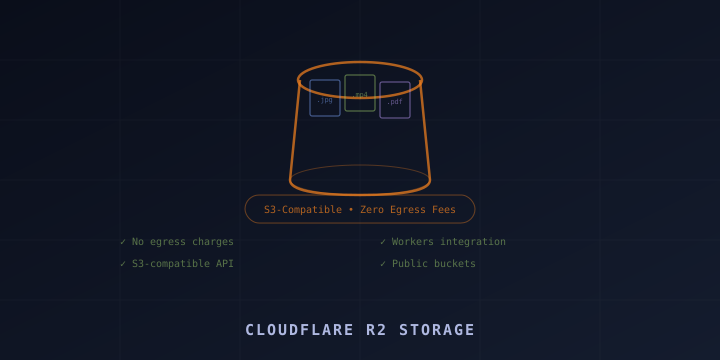
Cloud storage is expensive — not because of storage itself, but because of egress fees. AWS S3 charges $0.09/GB to download your own data. Serve a popular file and your bill explodes. Cloudflare R2 eliminates this entirely: zero egress fees, S3-compatible API, and tight integration with Workers and Pages.
This guide covers creating R2 buckets, uploading files, accessing them from Workers, setting up public access, and using the S3 API with existing tools.
What is Cloudflare R2?
R2 is Cloudflare’s object storage service — think AWS S3, but without egress charges. It stores files (objects) in buckets and provides an S3-compatible API.
Key features:
- Zero egress fees: Download your data as much as you want — no bandwidth charges
- S3-compatible API: Use existing S3 tools, SDKs, and libraries
- Workers binding: Access R2 directly from Workers with low-latency
- Public buckets: Serve files publicly via
r2.devsubdomain or custom domain - Free tier: 10 GB storage, 10 million Class A operations, 1 million Class B operations per month
Pricing (Beyond Free Tier)
| Resource | Price |
|---|---|
| Storage | $0.015/GB/month |
| Class A operations (PUT, POST, LIST) | $4.50/million |
| Class B operations (GET, HEAD) | $0.36/million |
| Egress | $0.00 (free!) |
Compare with S3: storage is similar, but S3 charges $0.09/GB for egress. R2 saves significantly on bandwidth-heavy workloads.
Creating an R2 Bucket
Via Dashboard
- Go to dash.cloudflare.com → R2 Object Storage
- Click Create bucket
- Name your bucket (e.g.,
my-files) - Choose location hint (automatic or specific region)
- Click Create bucket
Via Wrangler CLI
# Create a bucket
wrangler r2 bucket create my-files

# List all buckets
wrangler r2 bucket list

# Delete a bucket
wrangler r2 bucket delete my-files
Uploading and Managing Files
Via Dashboard
Navigate to your bucket in the dashboard and use the Upload button to drag and drop files.
Via Wrangler CLI
# Upload a file
wrangler r2 object put my-files/images/photo.jpg --file ./photo.jpg

# Upload with content type
wrangler r2 object put my-files/data.json --file ./data.json --content-type application/json

# Download a file
wrangler r2 object get my-files/images/photo.jpg --file ./downloaded-photo.jpg

# Delete a file
wrangler r2 object delete my-files/images/photo.jpg

# List objects in a bucket
wrangler r2 object list my-files
Via S3-Compatible API
R2 works with any S3 client. First, create API credentials:
- Go to R2 → Manage R2 API Tokens
- Click Create API token
- Set permissions (Object Read & Write, or Admin)
- Note the Access Key ID and Secret Access Key
Your S3 endpoint is:
https://<ACCOUNT_ID>.r2.cloudflarestorage.comFind your Account ID in the Cloudflare dashboard URL or under Workers & Pages → Overview.
Using AWS CLI with R2
# Configure AWS CLI for R2
aws configure --profile r2
# Access Key ID: your-r2-access-key
# Secret Access Key: your-r2-secret-key
# Region: auto
# Output format: json

# List buckets
aws s3 ls --endpoint-url https://ACCOUNT_ID.r2.cloudflarestorage.com --profile r2

# Upload a file
aws s3 cp ./file.txt s3://my-files/file.txt \
  --endpoint-url https://ACCOUNT_ID.r2.cloudflarestorage.com --profile r2

# Sync a directory
aws s3 sync ./public/ s3://my-files/ \
  --endpoint-url https://ACCOUNT_ID.r2.cloudflarestorage.com --profile r2

# Download a file
aws s3 cp s3://my-files/file.txt ./downloaded.txt \
  --endpoint-url https://ACCOUNT_ID.r2.cloudflarestorage.com --profile r2

# List objects
aws s3 ls s3://my-files/ \
  --endpoint-url https://ACCOUNT_ID.r2.cloudflarestorage.com --profile r2
Using rclone with R2
rclone is a popular tool for syncing files to cloud storage:
# Configure rclone
rclone config
# Choose: New remote
# Name: r2
# Type: Amazon S3 Compliant
# Provider: Cloudflare
# Access Key ID: your-key
# Secret Access Key: your-secret
# Endpoint: https://ACCOUNT_ID.r2.cloudflarestorage.com

# Sync local directory to R2
rclone sync ./backup/ r2:my-files/backup/

# List files
rclone ls r2:my-files/

# Copy a single file
rclone copy ./large-file.zip r2:my-files/
Accessing R2 from Workers
The most powerful way to use R2 is directly from Cloudflare Workers via bindings.
Configure the Binding
In wrangler.toml:
name = "my-worker"
main = "src/index.ts"

[[r2_buckets]]
binding = "BUCKET"
bucket_name = "my-files"
Read and Write Objects
interface Env {
  BUCKET: R2Bucket;
}

export default {
  async fetch(request: Request, env: Env): Promise<Response> {
    const url = new URL(request.url);
    const key = url.pathname.slice(1); // Remove leading /

    switch (request.method) {
      case "GET": {
        // Get an object
        const object = await env.BUCKET.get(key);
        if (!object) {
          return new Response("Not Found", { status: 404 });
        }

        const headers = new Headers();
        object.writeHttpMetadata(headers);
        headers.set("etag", object.httpEtag);
        headers.set("cache-control", "public, max-age=86400");

        return new Response(object.body, { headers });
      }

      case "PUT": {
        // Upload an object
        const body = await request.arrayBuffer();
        await env.BUCKET.put(key, body, {
          httpMetadata: {
            contentType: request.headers.get("content-type") || "application/octet-stream",
          },
        });
        return new Response("Uploaded", { status: 201 });
      }

      case "DELETE": {
        // Delete an object
        await env.BUCKET.delete(key);
        return new Response("Deleted", { status: 200 });
      }

      default:
        return new Response("Method Not Allowed", { status: 405 });
    }
  },
};
List Objects
export default {
  async fetch(request: Request, env: Env): Promise<Response> {
    const url = new URL(request.url);
    const prefix = url.searchParams.get("prefix") || "";

    const listed = await env.BUCKET.list({
      prefix,
      limit: 100,
    });

    const files = listed.objects.map(obj => ({
      key: obj.key,
      size: obj.size,
      uploaded: obj.uploaded.toISOString(),
    }));

    return Response.json({ files, truncated: listed.truncated });
  },
};
Presigned URLs (Time-Limited Access)
Generate temporary URLs for file uploads or downloads:
export default {
  async fetch(request: Request, env: Env): Promise<Response> {
    const url = new URL(request.url);
    const key = url.searchParams.get("key");

    if (!key) {
      return new Response("Missing key parameter", { status: 400 });
    }

    // Create a presigned URL valid for 1 hour
    const signedUrl = await env.BUCKET.createPresignedUrl(key, {
      expiresIn: 3600,
    });

    return Response.json({ url: signedUrl });
  },
};
Public Buckets
Enable Public Access via r2.dev
- Go to your bucket → Settings → Public access
- Enable R2.dev subdomain
- Your files are now accessible at:
https://pub-<hash>.r2.dev/path/to/file.jpg
Custom Domain for Public Access
For a clean URL like https://files.yourdomain.com:
- Go to your bucket → Settings → Custom domains
- Add your domain (must be on Cloudflare DNS)
- Cloudflare sets up the DNS automatically
Now files are accessible at https://files.yourdomain.com/path/to/file.jpg.
Cache Control
Set cache headers when uploading to control CDN caching:
await env.BUCKET.put("image.jpg", imageData, {
  httpMetadata: {
    contentType: "image/jpeg",
    cacheControl: "public, max-age=2592000", // 30 days
  },
});
Common Use Cases
Static Asset Hosting
Store images, CSS, JS, and other static files in R2 and serve them via a custom domain with Cloudflare’s CDN caching.
Backup Storage
Use rclone or the S3 API to back up servers, databases, or local files:
# Daily database backup to R2
pg_dump mydb | gzip | aws s3 cp - s3://backups/db/$(date +%F).sql.gz \
  --endpoint-url https://ACCOUNT_ID.r2.cloudflarestorage.com --profile r2
User File Uploads
Build a file upload API with Workers + R2:
export default {
  async fetch(request: Request, env: Env): Promise<Response> {
    if (request.method !== "POST") {
      return new Response("Use POST", { status: 405 });
    }

    const formData = await request.formData();
    const file = formData.get("file") as File;

    if (!file) {
      return new Response("No file provided", { status: 400 });
    }

    const key = `uploads/${Date.now()}-${file.name}`;
    await env.BUCKET.put(key, file.stream(), {
      httpMetadata: { contentType: file.type },
    });

    return Response.json({
      url: `https://files.yourdomain.com/${key}`,
      key,
    });
  },
};
Migrate from S3
Since R2 is S3-compatible, migration is straightforward:
# Using rclone to copy from S3 to R2
rclone copy s3:my-s3-bucket r2:my-r2-bucket --progress

# Or use AWS CLI
aws s3 sync s3://source-bucket s3://dest-bucket \
  --source-region us-east-1 \
  --endpoint-url https://ACCOUNT_ID.r2.cloudflarestorage.com
Wrangler R2 Commands
| Command | Purpose |
|---|---|
wrangler r2 bucket create <name> | Create a bucket |
wrangler r2 bucket list | List all buckets |
wrangler r2 bucket delete <name> | Delete a bucket |
wrangler r2 object put <bucket>/<key> --file <path> | Upload a file |
wrangler r2 object get <bucket>/<key> | Download a file |
wrangler r2 object delete <bucket>/<key> | Delete a file |
wrangler r2 object list <bucket> | List objects |
Summary
Cloudflare R2 is the best choice for object storage when bandwidth matters. Zero egress fees mean you can serve files to millions of users without worrying about your bill. The S3-compatible API means you can use existing tools, and Workers integration provides powerful server-side file processing.
Key resources:
- Documentation: https://developers.cloudflare.com/r2/
- S3 API compatibility: https://developers.cloudflare.com/r2/api/s3/
- Workers R2 API: https://developers.cloudflare.com/r2/api/workers/
- Pricing: https://developers.cloudflare.com/r2/pricing/
Create a bucket, upload your files, and stop paying egress fees.