Expose Local Services to the Internet Securely with Cloudflare Tunnels
Ever wanted to share a local development server, self-hosted app, or home lab service with the world — without opening ports on your router or paying for a static IP? Cloudflare Tunnels let you do exactly that, for free.
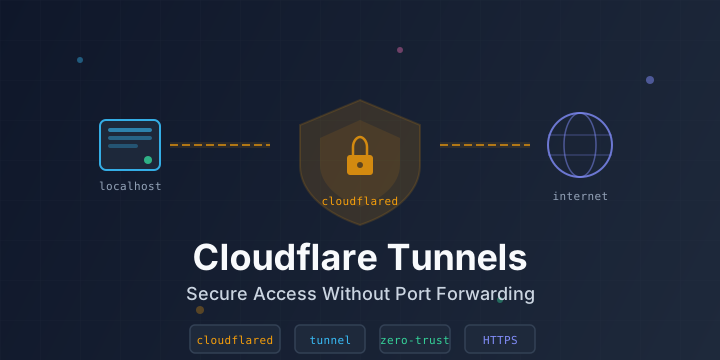
Cloudflare Tunnel (formerly Argo Tunnel) creates an encrypted outbound-only connection from your machine to Cloudflare’s edge network. Traffic flows through Cloudflare’s infrastructure to your local service, meaning your origin server’s IP is never exposed and you don’t need to touch any firewall or router settings.
Why Cloudflare Tunnels?
| Traditional Approach | Cloudflare Tunnel |
|---|---|
| Open ports on router | No port forwarding needed |
| Expose server IP to public | Origin IP stays hidden |
| Buy a static IP or use DDNS | Works behind any NAT/CGNAT |
| Manually configure SSL certs | Free automatic HTTPS |
| Set up firewall rules | Outbound-only connections |
Prerequisites
- A free Cloudflare account — sign up at dash.cloudflare.com
- A domain name added to your Cloudflare account (even a cheap one works; Cloudflare also sells domains at cost via Cloudflare Registrar)
- A local service running on your machine (e.g., a web app on
localhost:3000) - Linux, macOS, or Windows machine
Step 1: Install cloudflared
cloudflared is the lightweight daemon that establishes the tunnel connection.
macOS (Homebrew)
brew install cloudflaredDebian / Ubuntu
curl -L https://github.com/cloudflare/cloudflared/releases/latest/download/cloudflared-linux-amd64.deb -o cloudflared.deb
sudo dpkg -i cloudflared.deb
Red Hat / CentOS / Fedora
curl -L https://github.com/cloudflare/cloudflared/releases/latest/download/cloudflared-linux-x86_64.rpm -o cloudflared.rpm
sudo rpm -i cloudflared.rpm
Windows
Download the latest .msi installer from the cloudflared releases page or use winget:
winget install --id Cloudflare.cloudflaredDocker
docker pull cloudflare/cloudflared:latestVerify the installation:
cloudflared --versionStep 2: Authenticate with Cloudflare
Log in to your Cloudflare account from the terminal:
cloudflared tunnel loginThis opens a browser window where you select the domain you want to use for the tunnel. After authorizing, a certificate file is saved to ~/.cloudflared/cert.pem. This certificate is used to manage tunnels for that domain.
Step 3: Create a Named Tunnel
Create a persistent, named tunnel:
cloudflared tunnel create my-tunnelThis generates:
- A tunnel UUID (e.g.,
a1b2c3d4-e5f6-7890-abcd-ef1234567890) - A credentials file at
~/.cloudflared/<TUNNEL_UUID>.json
List your tunnels anytime with:
cloudflared tunnel listStep 4: Configure DNS
Point a subdomain to your tunnel by creating a CNAME record:
cloudflared tunnel route dns my-tunnel myapp.yourdomain.comThis automatically creates a CNAME record in your Cloudflare DNS pointing myapp.yourdomain.com to <TUNNEL_UUID>.cfargotunnel.com.
You can verify it in the Cloudflare dashboard under DNS > Records.
Step 5: Create the Configuration File
Create a config file at ~/.cloudflared/config.yml:
tunnel: a1b2c3d4-e5f6-7890-abcd-ef1234567890
credentials-file: /home/youruser/.cloudflared/a1b2c3d4-e5f6-7890-abcd-ef1234567890.json

ingress:
  - hostname: myapp.yourdomain.com
    service: http://localhost:3000
  - service: http_status:404
Replace the tunnel UUID, credentials path, hostname, and port with your actual values.
Key config notes:
- The last ingress rule must be a catch-all (no
hostname). Usinghttp_status:404returns a 404 for unmatched requests. - You can route multiple services through one tunnel by adding more ingress rules:
ingress:
  - hostname: myapp.yourdomain.com
    service: http://localhost:3000
  - hostname: api.yourdomain.com
    service: http://localhost:8080
  - hostname: grafana.yourdomain.com
    service: http://localhost:3001
  - service: http_status:404
Step 6: Run the Tunnel
Start the tunnel:
cloudflared tunnel run my-tunnelYou should see output indicating the tunnel is connected:
INF Connection established connIndex=0 connection=...
INF Connection established connIndex=1 connection=...
INF Connection established connIndex=2 connection=...
INF Connection established connIndex=3 connection=...
Cloudflare establishes four connections by default across different data centers for redundancy.
Now visit https://myapp.yourdomain.com in your browser — your local service is live on the internet with full HTTPS, and your origin IP is completely hidden.
Step 7: Run as a System Service (Recommended)
For production use, install cloudflared as a system service so it starts automatically on boot:
Linux (systemd)
sudo cloudflared service install
sudo systemctl enable cloudflared
sudo systemctl start cloudflared
This copies your config to /etc/cloudflared/config.yml and sets up a systemd unit.
macOS (launchd)
sudo cloudflared service installWindows
cloudflared service installCheck service status:
# Linux
sudo systemctl status cloudflared

# macOS
sudo launchctl list | grep cloudflared
Quick Tunnels (No Setup Required)
Need a temporary public URL fast? Use a quick tunnel — no Cloudflare account or domain needed:
cloudflared tunnel --url http://localhost:3000This instantly gives you a random https://xxx-xxx-xxx.trycloudflare.com URL that proxies to your local service. Perfect for:
- Sharing a local dev server with a teammate
- Testing webhooks from external services (Stripe, GitHub, etc.)
- Quick demos and presentations
The URL is temporary and stops working when you close cloudflared.
Running with Docker
If you prefer Docker, run a named tunnel like this:
docker run -d \
  --name cloudflared-tunnel \
  --restart unless-stopped \
  -v /home/youruser/.cloudflared:/etc/cloudflared \
  cloudflare/cloudflared:latest \
  tunnel run my-tunnel
Or a quick tunnel:
docker run --rm \
  --network host \
  cloudflare/cloudflared:latest \
  tunnel --url http://localhost:3000
Cloudflare Zero Trust Dashboard
You can also create and manage tunnels entirely through the Cloudflare Zero Trust dashboard at one.dash.cloudflare.com:
- Go to Networks > Tunnels
- Click Create a tunnel
- Choose Cloudflared as the connector
- Name your tunnel and follow the install instructions
- Add public hostname routes to your local services
The dashboard method gives you a connector install token, so you run:
cloudflared service install <TOKEN>This approach is easier for managing multiple tunnels and doesn’t require local config files.
Exposing Non-HTTP Services
Cloudflare Tunnels aren’t limited to HTTP. You can expose:
SSH Access
ingress:
  - hostname: ssh.yourdomain.com
    service: ssh://localhost:22
  - service: http_status:404
Users connect using cloudflared access as a proxy:
# On the client machine
cloudflared access ssh --hostname ssh.yourdomain.com
Or configure your ~/.ssh/config:
Host ssh.yourdomain.com
  ProxyCommand cloudflared access ssh --hostname %h
RDP (Remote Desktop)
ingress:
  - hostname: rdp.yourdomain.com
    service: rdp://localhost:3389
  - service: http_status:404
TCP Services
ingress:
  - hostname: db.yourdomain.com
    service: tcp://localhost:5432
  - service: http_status:404
Adding Access Policies (Zero Trust)
By default, anyone with the URL can access your tunneled service. To add authentication, use Cloudflare Access policies:
- Go to one.dash.cloudflare.com > Access > Applications
- Click Add an application > Self-hosted
- Set the application domain (e.g.,
myapp.yourdomain.com) - Create a policy — for example:
- Allow emails ending in
@yourcompany.com - Allow specific email addresses
- Require a one-time PIN sent via email
- Allow emails ending in
This adds an authentication layer in front of your tunnel at no extra cost (up to 50 users on the free plan).
Troubleshooting
Tunnel won’t connect
# Check tunnel status
cloudflared tunnel info my-tunnel

# Test with verbose logging
cloudflared tunnel --loglevel debug run my-tunnel
502 Bad Gateway errors
This means cloudflared can reach Cloudflare but can’t connect to your local service. Verify:
- Your local service is actually running on the configured port
- The service URL in config uses the correct protocol (
http://vshttps://) - If your local service uses HTTPS with self-signed certs, add
noTLSVerify:
ingress:
  - hostname: myapp.yourdomain.com
    service: https://localhost:8443
    originRequest:
      noTLSVerify: true
  - service: http_status:404
DNS not resolving
- Confirm the CNAME record exists in Cloudflare DNS dashboard
- Wait a few minutes for DNS propagation
- Run
dig myapp.yourdomain.comto check resolution
Check logs
# systemd logs
journalctl -u cloudflared -f

# Docker logs
docker logs -f cloudflared-tunnel
Security Best Practices
- Use named tunnels in production, not quick tunnels
- Enable Cloudflare Access policies to restrict who can reach your services
- Keep
cloudflaredupdated — it auto-updates when installed as a service, but check manually for Docker - Don’t expose sensitive services without authentication
- Monitor tunnel metrics in the Zero Trust dashboard under Networks > Tunnels
- Use
originRequestsettings to fine-tune connection behavior (timeouts, keep-alives, TLS settings)
Pricing
Cloudflare Tunnels are completely free with any Cloudflare plan, including the free tier. You get:
- Unlimited tunnels
- Unlimited bandwidth
- Automatic HTTPS
- DDoS protection
- Up to 50 users for Cloudflare Access (free plan)
Conclusion
Cloudflare Tunnels eliminate the complexity of exposing local services to the internet. No port forwarding, no dynamic DNS, no SSL certificate management — just a single binary that creates a secure, encrypted connection from your machine to Cloudflare’s global network. Whether you’re sharing a development server, running a home lab, or deploying production services, cloudflared is one of the most practical tools to have in your toolkit.