Cloudflare Workers Logs: Live Tailing, Debugging, and Error Tracking
Debugging serverless functions can be tricky — there’s no server to SSH into and no log files to tail. Cloudflare Workers run on edge nodes across 300+ data centers, so traditional debugging doesn’t apply. Instead, you need to use wrangler tail for live log streaming, the Cloudflare dashboard for historical logs, and structured logging patterns for production observability.
This guide covers every way to check logs on Cloudflare Workers, from development to production debugging.
Live Logs with wrangler tail
The most powerful debugging tool for Workers is wrangler tail — it streams live logs from your deployed Worker in real time.
Basic Usage
# Stream logs from your Worker
wrangler tail

# Stream with pretty formatting
wrangler tail --format pretty

# Stream in JSON format (for piping to other tools)
wrangler tail --format json
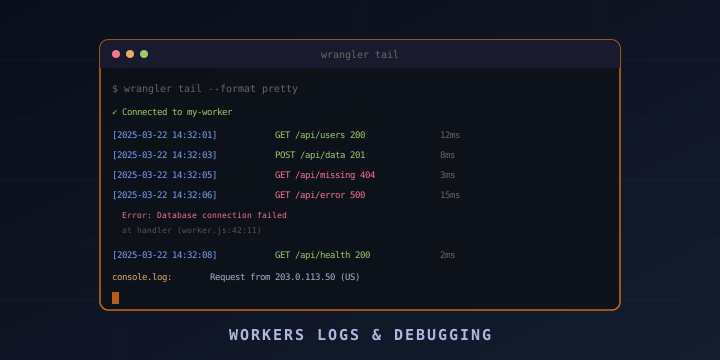
When you run wrangler tail --format pretty, you’ll see output like:
Successfully created tail, expires at 2025-03-22T15:30:00Z
Connected to my-worker, waiting for logs...

GET https://my-worker.example.com/api/users - Ok @ 3/22/2025, 2:32:01 PM
  (log) Processing request from 203.0.113.50
  (log) Fetched 42 users from KV

POST https://my-worker.example.com/api/data - Ok @ 3/22/2025, 2:32:03 PM
  (log) Received payload: {"name":"test"}
  (log) Stored in KV successfully

GET https://my-worker.example.com/api/error - Error @ 3/22/2025, 2:32:05 PM
  (error) TypeError: Cannot read property 'id' of undefined
      at handler (worker.js:42:11)
Filtering Logs
# Only show errors
wrangler tail --status error

# Only show specific HTTP methods
wrangler tail --method GET

# Filter by HTTP status code
wrangler tail --status ok        # 2xx responses
wrangler tail --status error     # 4xx/5xx responses

# Filter by search string in logs
wrangler tail --search "database"

# Filter by IP address
wrangler tail --ip-address 203.0.113.50

# Combine filters
wrangler tail --method POST --status error --format pretty

# Sample logs (useful for high-traffic Workers)
wrangler tail --sampling-rate 0.1  # 10% of requests
Tail a Specific Environment
# Tail production
wrangler tail --env production

# Tail staging
wrangler tail --env staging
Pipe to jq for JSON Processing
# Stream as JSON and filter with jq
wrangler tail --format json | jq '.logs[]'

# Extract only error messages
wrangler tail --format json | jq 'select(.outcome == "exception") | .exceptions'

# Count requests per path
wrangler tail --format json | jq -r '.event.request.url' | sort | uniq -c | sort -rn
Console Methods in Workers
Workers support standard JavaScript console methods. Everything you log appears in wrangler tail and the dashboard.
Basic Logging
export default {
  async fetch(request: Request, env: Env): Promise<Response> {
    // Standard log levels
    console.log("Info message");           // Shows as (log)
    console.info("Info message");          // Shows as (info)
    console.warn("Warning message");       // Shows as (warn)
    console.error("Error message");        // Shows as (error)
    console.debug("Debug message");        // Shows as (debug)

    return new Response("OK");
  },
};
Structured Logging
For production Workers, use structured JSON logging:
function log(level: string, message: string, data?: Record<string, any>) {
  console.log(JSON.stringify({
    level,
    message,
    timestamp: new Date().toISOString(),
    ...data,
  }));
}

export default {
  async fetch(request: Request, env: Env): Promise<Response> {
    const url = new URL(request.url);

    log("info", "Request received", {
      method: request.method,
      path: url.pathname,
      ip: request.headers.get("CF-Connecting-IP"),
      country: request.headers.get("CF-IPCountry"),
      userAgent: request.headers.get("User-Agent"),
    });

    try {
      const result = await processRequest(request, env);

      log("info", "Request processed", {
        path: url.pathname,
        status: 200,
        duration: result.duration,
      });

      return Response.json(result.data);
    } catch (error) {
      log("error", "Request failed", {
        path: url.pathname,
        error: error.message,
        stack: error.stack,
      });

      return Response.json({ error: "Internal error" }, { status: 500 });
    }
  },
};
Logging Request Details
export default {
  async fetch(request: Request, env: Env): Promise<Response> {
    // Log useful request info
    const url = new URL(request.url);

    console.log("Request:", {
      method: request.method,
      url: url.pathname,
      query: Object.fromEntries(url.searchParams),
      headers: Object.fromEntries(request.headers),
      cf: request.cf, // Cloudflare-specific data (country, colo, etc.)
    });

    // Log Cloudflare-specific properties
    console.log("CF Properties:", {
      country: request.cf?.country,
      city: request.cf?.city,
      colo: request.cf?.colo,        // Data center code (SFO, LHR, etc.)
      tlsVersion: request.cf?.tlsVersion,
      httpProtocol: request.cf?.httpProtocol,
      asn: request.cf?.asn,
      timezone: request.cf?.timezone,
    });

    return new Response("OK");
  },
};
Dashboard Logs
Real-Time Logs in the Dashboard
- Go to dash.cloudflare.com
- Navigate to Workers & Pages → Select your Worker
- Click the Logs tab
- Click Begin log stream
The dashboard shows the same information as wrangler tail but in a web UI with filtering options.
Workers Metrics
The dashboard also shows analytics for your Worker:
- Requests: Total, success, errors over time
- CPU time: How much compute each request uses
- Duration: Wall-clock time per request
- Data transfer: Bytes in/out
- Error rates: 4xx and 5xx percentage
Navigate to Workers & Pages → your Worker → Metrics to see these.
Workers Trace Events (Paid Plan)
On the Workers Paid plan ($5/month), you get Trace Events — persistent logs that are stored and queryable:
- Go to your Worker → Logs → Trace Events
- Filter by date, status, method, path
- Click individual requests to see full details including console output
Local Debugging with wrangler dev
During development, wrangler dev shows logs directly in your terminal:
wrangler devAll console.log() output appears immediately. This is the fastest feedback loop.
# With verbose output
wrangler dev --log-level debug

# Test with local bindings (KV, D1, R2)
wrangler dev --local

# Remote mode (uses real Cloudflare bindings)
wrangler dev --remote
Debugging with Breakpoints
Use Chrome DevTools for step-through debugging:
wrangler dev --inspectThen open chrome://inspect in Chrome and connect to the Worker. You can set breakpoints, inspect variables, and step through code.
Error Handling Patterns
Global Error Handler
Wrap your entire Worker in a try-catch to never return raw errors:
export default {
  async fetch(request: Request, env: Env, ctx: ExecutionContext): Promise<Response> {
    try {
      return await handleRequest(request, env, ctx);
    } catch (error) {
      console.error("Unhandled error:", error.message, error.stack);

      return Response.json(
        { error: "Internal Server Error", requestId: crypto.randomUUID() },
        { status: 500 }
      );
    }
  },
};

async function handleRequest(request: Request, env: Env, ctx: ExecutionContext): Promise<Response> {
  // Your actual logic here
  const url = new URL(request.url);
  // ...
}
Request Timing
export default {
  async fetch(request: Request, env: Env): Promise<Response> {
    const startTime = Date.now();

    try {
      const response = await handleRequest(request, env);

      const duration = Date.now() - startTime;
      console.log(`${request.method} ${new URL(request.url).pathname} ${response.status} ${duration}ms`);

      return response;
    } catch (error) {
      const duration = Date.now() - startTime;
      console.error(`${request.method} ${new URL(request.url).pathname} ERROR ${duration}ms: ${error.message}`);
      throw error;
    }
  },
};
Sending Logs to External Services
For persistent, searchable logs beyond what Cloudflare provides, send logs to external services using ctx.waitUntil():
Log to an External HTTP Endpoint
export default {
  async fetch(request: Request, env: Env, ctx: ExecutionContext): Promise<Response> {
    const startTime = Date.now();
    const response = await handleRequest(request, env);
    const duration = Date.now() - startTime;

    // Send logs asynchronously (doesn't delay the response)
    ctx.waitUntil(
      sendLog(env, {
        timestamp: new Date().toISOString(),
        method: request.method,
        url: request.url,
        status: response.status,
        duration,
        country: request.cf?.country,
        colo: request.cf?.colo,
      })
    );

    return response;
  },
};

async function sendLog(env: Env, logData: Record<string, any>) {
  try {
    await fetch(env.LOG_ENDPOINT, {
      method: "POST",
      headers: {
        "Content-Type": "application/json",
        "Authorization": `Bearer ${env.LOG_TOKEN}`,
      },
      body: JSON.stringify(logData),
    });
  } catch (e) {
    // Don't let logging failures affect the Worker
    console.error("Failed to send log:", e.message);
  }
}
Log to Cloudflare Logpush
For enterprise logging, Cloudflare offers Logpush which sends Workers logs to:
- Amazon S3
- Google Cloud Storage
- Azure Blob Storage
- Sumo Logic
- Datadog
- Splunk
Configure Logpush in the Cloudflare dashboard under Analytics & Logs → Logpush.
Workers Tail Workers
Tail Workers are a special type of Worker that receives logs from other Workers. This is useful for centralized logging:
# In the source Worker's wrangler.toml
[tail_consumers]
service = "my-log-worker"
The Tail Worker receives events:
// my-log-worker/src/index.ts
export default {
  async tail(events: TraceItem[], env: Env, ctx: ExecutionContext) {
    for (const event of events) {
      console.log("Worker:", event.scriptName);
      console.log("Status:", event.outcome);
      console.log("Logs:", event.logs);
      console.log("Exceptions:", event.exceptions);

      // Store in R2, send to external service, etc.
      await env.LOGS_BUCKET.put(
        `${event.scriptName}/${Date.now()}.json`,
        JSON.stringify(event)
      );
    }
  },
};
Quick Reference
| Method | Use Case |
|---|---|
wrangler tail | Live streaming logs from production |
wrangler tail --format pretty | Human-readable live logs |
wrangler tail --status error | Only show errors |
wrangler dev | Local development with instant logs |
wrangler dev --inspect | Chrome DevTools debugging |
| Dashboard → Logs | Web-based live log stream |
| Dashboard → Metrics | Request counts, errors, CPU time |
console.log() | Basic logging in Worker code |
ctx.waitUntil() | Async log shipping to external services |
| Tail Workers | Centralized log processing |
| Logpush | Enterprise log export to S3/Datadog/etc. |
Summary
Debugging Cloudflare Workers is different from traditional servers, but the tools are powerful:
- Development: Use
wrangler devwithconsole.log()for instant feedback - Production debugging: Use
wrangler tail --format prettyfor live log streaming - Error tracking: Wrap handlers in try-catch with structured error logging
- Persistent logs: Use Tail Workers, Logpush, or
ctx.waitUntil()with external services - Metrics: Use the Cloudflare dashboard for request analytics
Key resources:
- Wrangler tail docs: https://developers.cloudflare.com/workers/observability/logs/wrangler-tail/
- Workers logging: https://developers.cloudflare.com/workers/observability/logs/
- Tail Workers: https://developers.cloudflare.com/workers/observability/logs/tail-workers/
- Logpush: https://developers.cloudflare.com/workers/observability/logs/logpush/
Master wrangler tail and structured logging, and you’ll debug Workers issues faster than most server-side applications.