Manage Your Dotfiles with Git and Never Lose Your Config Again
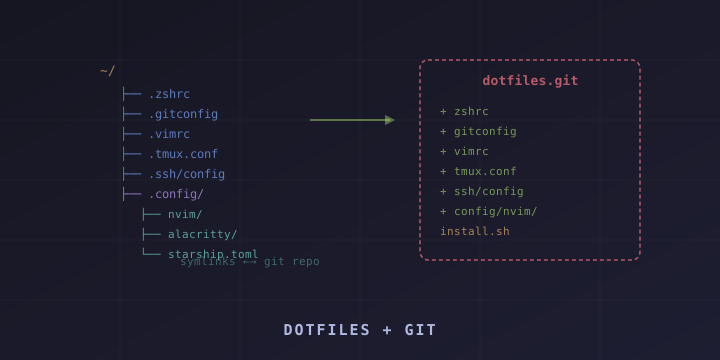
Every developer accumulates configuration files — .zshrc, .gitconfig, .vimrc, .tmux.conf, SSH configs, and editor settings. These dotfiles represent hours of tweaking and customization. Losing them when you switch machines or reinstall your OS is painful.
The solution is simple: put your dotfiles in a Git repository. This guide covers how to organize, symlink, and manage your dotfiles so you can set up any new machine with a single command.
What Are Dotfiles?
Dotfiles are configuration files on Unix-like systems that start with a dot (.), making them hidden by default. Common dotfiles include:
| File | Purpose |
|---|---|
~/.zshrc or ~/.bashrc | Shell configuration, aliases, PATH |
~/.gitconfig | Git settings, aliases, user info |
~/.vimrc or ~/.config/nvim/ | Vim/Neovim configuration |
~/.tmux.conf | tmux configuration |
~/.ssh/config | SSH host aliases and settings |
~/.config/starship.toml | Starship prompt config |
~/.config/alacritty/ | Terminal emulator settings |
~/.Brewfile | Homebrew packages list |
Strategy 1: Symlinks (Manual)
The most straightforward approach: store your dotfiles in a Git repo and create symbolic links from your home directory to the repo.
Step 1: Create the Repo
mkdir ~/dotfiles
cd ~/dotfiles
git init
Step 2: Move Config Files Into the Repo
# Move files (without the dot prefix, or keep it — your choice)
mv ~/.zshrc ~/dotfiles/zshrc
mv ~/.gitconfig ~/dotfiles/gitconfig
mv ~/.vimrc ~/dotfiles/vimrc
mv ~/.tmux.conf ~/dotfiles/tmux.conf
Step 3: Create Symlinks Back
ln -sf ~/dotfiles/zshrc ~/.zshrc
ln -sf ~/dotfiles/gitconfig ~/.gitconfig
ln -sf ~/dotfiles/vimrc ~/.vimrc
ln -sf ~/dotfiles/tmux.conf ~/.tmux.conf
Step 4: Create an Install Script
Create ~/dotfiles/install.sh:
#!/bin/bash
set -e

DOTFILES_DIR="$HOME/dotfiles"

# Create symlinks
ln -sf "$DOTFILES_DIR/zshrc" "$HOME/.zshrc"
ln -sf "$DOTFILES_DIR/gitconfig" "$HOME/.gitconfig"
ln -sf "$DOTFILES_DIR/vimrc" "$HOME/.vimrc"
ln -sf "$DOTFILES_DIR/tmux.conf" "$HOME/.tmux.conf"

# Create directories if needed
mkdir -p "$HOME/.config/nvim"
ln -sf "$DOTFILES_DIR/config/nvim/init.lua" "$HOME/.config/nvim/init.lua"

mkdir -p "$HOME/.ssh"
ln -sf "$DOTFILES_DIR/ssh/config" "$HOME/.ssh/config"
chmod 600 "$HOME/.ssh/config"

echo "Dotfiles installed!"
Make it executable:
chmod +x ~/dotfiles/install.shStep 5: Push to GitHub
cd ~/dotfiles
git add -A
git commit -m "Initial dotfiles"
git remote add origin https://github.com/yourusername/dotfiles.git
git push -u origin main
Setting Up a New Machine
git clone https://github.com/yourusername/dotfiles.git ~/dotfiles
cd ~/dotfiles
./install.sh
Strategy 2: GNU Stow (Recommended)
GNU Stow is a symlink farm manager that automates creating symlinks. It’s the cleanest way to manage dotfiles.
Install Stow
# macOS
brew install stow

# Ubuntu/Debian
sudo apt install stow

# Fedora
sudo dnf install stow
Directory Structure
With Stow, each “package” is a directory that mirrors your home directory structure:
~/dotfiles/
├── zsh/
│   └── .zshrc
├── git/
│   └── .gitconfig
├── vim/
│   └── .vimrc
├── tmux/
│   └── .tmux.conf
├── nvim/
│   └── .config/
│       └── nvim/
│           └── init.lua
├── ssh/
│   └── .ssh/
│       └── config
└── starship/
    └── .config/
        └── starship.toml
Each package directory contains files in the same relative path they should appear in your home directory.
Using Stow
cd ~/dotfiles

# Symlink a single package
stow zsh
# Creates: ~/.zshrc -> ~/dotfiles/zsh/.zshrc

# Symlink multiple packages
stow zsh git vim tmux nvim

# Symlink all packages
stow */

# Remove symlinks for a package
stow -D vim

# Re-stow (remove then re-create)
stow -R zsh
Full Install Script with Stow
#!/bin/bash
set -e

DOTFILES_DIR="$HOME/dotfiles"
cd "$DOTFILES_DIR"

# List of packages to install
packages=(
  zsh
  git
  vim
  tmux
  nvim
  ssh
  starship
)

for package in "${packages[@]}"; do
  echo "Stowing $package..."
  stow -R "$package" 2>/dev/null || stow "$package"
done

echo "All dotfiles installed!"
Strategy 3: Bare Git Repository
This advanced method uses a bare Git repo to track dotfiles directly in your home directory without symlinks:
# Initialize a bare repo
git init --bare $HOME/.dotfiles

# Create an alias
alias dotfiles='git --git-dir=$HOME/.dotfiles/ --work-tree=$HOME'

# Hide untracked files
dotfiles config --local status.showUntrackedFiles no

# Add the alias to your shell config
echo "alias dotfiles='git --git-dir=\$HOME/.dotfiles/ --work-tree=\$HOME'" >> ~/.zshrc
Usage:
# Add files
dotfiles add ~/.zshrc
dotfiles add ~/.gitconfig

# Commit
dotfiles commit -m "Add shell config"

# Push
dotfiles remote add origin https://github.com/user/dotfiles.git
dotfiles push -u origin main
Setting up on a new machine:
git clone --bare https://github.com/user/dotfiles.git $HOME/.dotfiles
alias dotfiles='git --git-dir=$HOME/.dotfiles/ --work-tree=$HOME'
dotfiles checkout
dotfiles config --local status.showUntrackedFiles no
What to Include in Your Dotfiles
Shell Configuration (.zshrc / .bashrc)
# Aliases
alias ll="ls -lah"
alias gs="git status"
alias dc="docker compose"
alias k="kubectl"

# PATH additions
export PATH="$HOME/.local/bin:$PATH"
export PATH="$HOME/go/bin:$PATH"

# Environment variables
export EDITOR="nvim"
export LANG="en_US.UTF-8"

# Custom functions
mkcd() { mkdir -p "$1" && cd "$1"; }
Git Configuration (.gitconfig)
[user]
    name = Your Name
    email = your@email.com

[core]
    editor = nvim
    autocrlf = input

[alias]
    st = status
    co = checkout
    br = branch
    ci = commit
    lg = log --oneline --graph --decorate -20
    unstage = reset HEAD --

[pull]
    rebase = true

[init]
    defaultBranch = main

[diff]
    colorMoved = default
SSH Config (.ssh/config)
Host github.com
    HostName github.com
    User git
    IdentityFile ~/.ssh/id_ed25519

Host homeserver
    HostName 192.168.1.100
    User admin
    Port 22
    IdentityFile ~/.ssh/id_ed25519

Host *
    AddKeysToAgent yes
    IdentitiesOnly yes
ServerAliveInterval 60Important: Never commit private SSH keys. Only commit ~/.ssh/config.
Brewfile (macOS)
# Taps
tap "homebrew/bundle"

# CLI tools
brew "git"
brew "node"
brew "python"
brew "ripgrep"
brew "fzf"
brew "bat"
brew "stow"
brew "tmux"
brew "neovim"

# Applications
cask "firefox"
cask "visual-studio-code"
cask "iterm2"
cask "rectangle"
Install everything:
brew bundle --file=~/dotfiles/BrewfileComplete Setup Script
A comprehensive install script that works on macOS and Linux:
#!/bin/bash
set -e

DOTFILES_DIR="$HOME/dotfiles"

echo "=== Setting up dotfiles ==="

# Detect OS
if [[ "$OSTYPE" == "darwin"* ]]; then
    OS="macos"
elif [[ "$OSTYPE" == "linux-gnu"* ]]; then
    OS="linux"
fi

# Install Homebrew (macOS) or essential packages (Linux)
if [ "$OS" = "macos" ]; then
    if ! command -v brew &>/dev/null; then
        echo "Installing Homebrew..."
        /bin/bash -c "$(curl -fsSL https://raw.githubusercontent.com/Homebrew/install/HEAD/install.sh)"
    fi
    echo "Installing packages from Brewfile..."
    brew bundle --file="$DOTFILES_DIR/Brewfile"
elif [ "$OS" = "linux" ]; then
    echo "Installing essential packages..."
    sudo apt update
    sudo apt install -y git stow zsh tmux neovim curl wget
fi

# Install Stow if not present
if ! command -v stow &>/dev/null; then
    echo "Please install GNU Stow first"
    exit 1
fi

# Stow all packages
cd "$DOTFILES_DIR"
for dir in */; do
    if [ -d "$dir" ] && [ "$dir" != ".git/" ]; then
        echo "Stowing ${dir%/}..."
        stow -R "${dir%/}" 2>/dev/null || true
    fi
done

# Set Zsh as default shell
if [ "$SHELL" != "$(which zsh)" ]; then
    echo "Setting Zsh as default shell..."
    chsh -s "$(which zsh)"
fi

echo "=== Dotfiles setup complete! ==="
echo "Restart your terminal to apply changes."
.gitignore for Dotfiles
# OS files
.DS_Store
Thumbs.db

# Sensitive data
*.pem
*.key
id_*
known_hosts

# Local overrides
*.local

# Cache
.cache/
Best Practices
- Never commit secrets: No API keys, passwords, or private SSH keys. Use environment variables or
.localoverride files - Use
.localfiles for machine-specific config:# In .zshrc [ -f ~/.zshrc.local ] && source ~/.zshrc.local - Document your setup: Add a README.md explaining what’s included and how to install
- Keep it modular: Use Stow packages or separate files so you can install only what you need
- Test on a fresh machine: Spin up a VM or container to test your install script
Popular Dotfiles for Inspiration
Browse these repos for ideas:
- GitHub does dotfiles: https://dotfiles.github.io
- Mathias Bynens: https://github.com/mathiasbynens/dotfiles — comprehensive macOS defaults
- Awesome dotfiles: https://github.com/webpro/awesome-dotfiles — curated list
Summary
Managing dotfiles with Git is one of the best investments in your development workflow. You get version history, easy setup on new machines, and the confidence that your configuration is always backed up.
Key resources:
- GNU Stow: https://www.gnu.org/software/stow/
- dotfiles.github.io: https://dotfiles.github.io
- Atlassian bare repo tutorial: https://www.atlassian.com/git/tutorials/dotfiles
Pick a strategy (Stow is the sweet spot), create a repo, and start tracking your configs today.