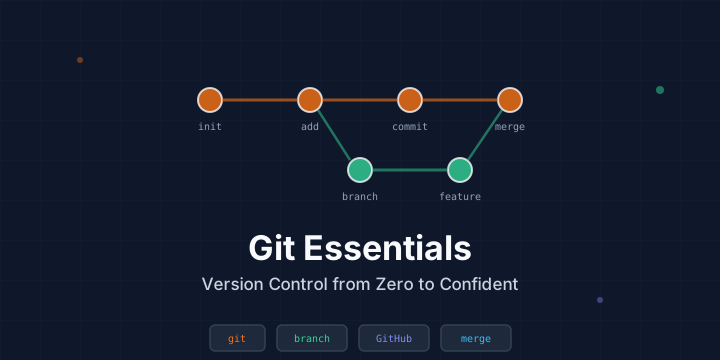
Git for Beginners: A Practical Guide to Version Control
Git is the most widely used version control system in the world. It tracks changes to your files, lets you collaborate with others, and gives you the ability to revert to any previous version of your project. Whether you’re a developer, writer, or designer, understanding Git is a fundamental skill.
This guide covers everything you need to go from zero to confidently using Git in your daily workflow.
Installing Git
macOS
brew install gitOr install Xcode Command Line Tools (includes Git):
xcode-select --installUbuntu / Debian
sudo apt update && sudo apt install -y gitWindows
Download from git-scm.com or use winget:
winget install --id Git.GitVerify the installation:
git --versionInitial Configuration
Set your identity — this information is attached to every commit you make:
git config --global user.name "Your Name"
git config --global user.email "your_email@example.com"
Set your default branch name to main:
git config --global init.defaultBranch mainSet your preferred editor:
git config --global core.editor "code --wait"   # VS Code
git config --global core.editor "vim"            # Vim
git config --global core.editor "nano"           # Nano
View all your settings:
git config --listCore Concepts
Before diving into commands, understand Git’s three main areas:
- Working Directory — Where you edit files on disk
- Staging Area (Index) — Where you prepare changes for the next commit
- Repository (.git) — Where Git stores the complete history
The typical workflow: Edit → Stage → Commit.
Creating a Repository
Start a new project
mkdir my-project
cd my-project
git init
This creates a hidden .git directory that stores all version history.
Clone an existing project
git clone https://github.com/username/repository.git
cd repository
The Basic Workflow
1. Check status
git statusThis shows which files are modified, staged, or untracked.
2. Stage changes
# Stage a specific file
git add index.html

# Stage multiple files
git add index.html style.css script.js

# Stage all changes
git add .

# Stage all changes including deletions
git add -A
3. Commit changes
git commit -m "Add homepage layout and styling"Write meaningful commit messages. Good messages explain what changed and why.
Good: Fix login form validation for empty email fields
Bad: fixed stuff or update
4. View history
# Full log
git log

# Compact one-line log
git log --oneline

# Visual graph of branches
git log --oneline --graph --all

# Show changes in each commit
git log -p

# Last 5 commits
git log -5
Working with Files
See what changed
# Changes in working directory (not yet staged)
git diff

# Changes that are staged
git diff --staged

# Changes in a specific file
git diff index.html
Undo changes
# Discard changes in working directory (restore to last commit)
git checkout -- index.html
# Or the modern way:
git restore index.html

# Unstage a file (keep the changes, just remove from staging)
git reset HEAD index.html
# Or the modern way:
git restore --staged index.html

# Undo the last commit but keep changes staged
git reset --soft HEAD~1

# Undo the last commit and unstage changes
git reset HEAD~1

# Completely undo the last commit (DANGEROUS — loses changes)
git reset --hard HEAD~1
Remove and rename files
# Remove a file from Git and disk
git rm old-file.txt

# Remove from Git but keep on disk
git rm --cached secret-config.txt

# Rename/move a file
git mv old-name.txt new-name.txt
Branching
Branches let you work on features, fixes, or experiments without affecting the main codebase.
Create and switch branches
# Create a new branch
git branch feature-login

# Switch to it
git checkout feature-login

# Create and switch in one command
git checkout -b feature-login

# Modern alternative
git switch -c feature-login
List branches
# Local branches
git branch

# All branches (including remote)
git branch -a

# Branches with last commit info
git branch -v
Merge branches
When your feature is complete, merge it back into main:
# Switch to main
git checkout main

# Merge the feature branch
git merge feature-login
If there are no conflicting changes, Git does a fast-forward merge. If both branches modified the same lines, you’ll get a merge conflict.
Resolve merge conflicts
When a conflict occurs, Git marks the conflicting sections in the file:
<<<<<<< HEAD
<h1>Welcome to our site</h1>
=======
<h1>Welcome to the app</h1>
>>>>>>> feature-login
To resolve:
- Edit the file to keep the correct version
- Remove the conflict markers (
<<<<<<<,=======,>>>>>>>) - Stage and commit:
git add index.html
git commit -m "Resolve merge conflict in header"
Delete a branch
# Delete a merged branch
git branch -d feature-login

# Force delete an unmerged branch
git branch -D experimental-feature
Working with Remotes (GitHub, GitLab, etc.)
Add a remote
git remote add origin https://github.com/username/my-project.gitPush to remote
# First push (sets upstream tracking)
git push -u origin main

# Subsequent pushes
git push
Pull from remote
# Fetch and merge
git pull

# Fetch only (doesn't change your files)
git fetch

# Then merge manually
git merge origin/main
View remotes
git remote -vThe .gitignore File
Create a .gitignore file to tell Git which files to skip:
# Dependencies
node_modules/
vendor/

# Build output
dist/
build/

# Environment files
.env
.env.local

# OS files
.DS_Store
Thumbs.db

# IDE files
.vscode/
.idea/
*.swp
GitHub maintains a collection of useful templates at github.com/github/gitignore.
Stashing Changes
Stash lets you temporarily save uncommitted changes when you need to switch branches:
# Save current changes
git stash

# Save with a description
git stash push -m "WIP: login form styling"

# List stashes
git stash list

# Apply the most recent stash
git stash pop

# Apply a specific stash
git stash apply stash@{2}

# Delete a stash
git stash drop stash@{0}
Tagging Releases
Tags mark specific points in history, typically for releases:
# Create a lightweight tag
git tag v1.0.0

# Create an annotated tag (recommended)
git tag -a v1.0.0 -m "Release version 1.0.0"

# List tags
git tag

# Push tags to remote
git push origin v1.0.0
git push origin --tags
Useful Commands Reference
| Task | Command |
|---|---|
| Initialize repo | git init |
| Clone repo | git clone <url> |
| Check status | git status |
| Stage changes | git add . |
| Commit | git commit -m "message" |
| View log | git log --oneline |
| Create branch | git checkout -b <name> |
| Switch branch | git checkout <name> |
| Merge branch | git merge <name> |
| Push | git push |
| Pull | git pull |
| Stash | git stash |
| Show diff | git diff |
| Undo last commit | git reset --soft HEAD~1 |
| View remotes | git remote -v |
| Tag a release | git tag -a v1.0 -m "msg" |
Git Aliases for Speed
Add shortcuts for common commands:
git config --global alias.st status
git config --global alias.co checkout
git config --global alias.br branch
git config --global alias.ci commit
git config --global alias.lg "log --oneline --graph --all"
Now git st runs git status, git lg shows a visual log, etc.
Common Mistakes and Fixes
Committed to the wrong branch
# Move the last commit to a new branch
git branch new-branch
git reset --hard HEAD~1
git checkout new-branch
Forgot to add a file to the last commit
git add forgotten-file.txt
git commit --amend --no-edit
Need to change the last commit message
git commit --amend -m "New, better commit message"Accidentally deleted a file
git checkout HEAD -- deleted-file.txtConclusion
Git is a tool you’ll use every day as a developer. The commands in this guide cover 95% of daily Git usage. Start with the basics — init, add, commit, push, pull — and gradually incorporate branching, stashing, and rebasing as you get comfortable. The best way to learn Git is to use it on a real project, so create a repository and start committing.