GPG Encryption and Git Commit Signing: A Practical Guide
GPG (GNU Privacy Guard) is the standard tool for encryption and digital signatures on Linux, macOS, and Windows. It’s used to encrypt files, sign emails, verify software packages, and — increasingly — sign Git commits to prove they came from you.
This guide covers generating GPG keys, encrypting/decrypting files, signing and verifying, and setting up Git commit signing with GitHub verification.
What is GPG?
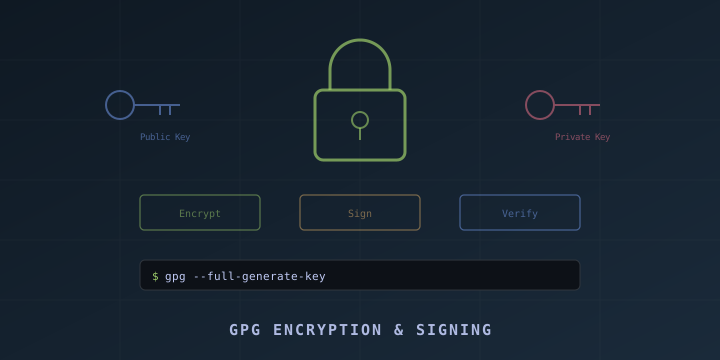
GPG implements the OpenPGP standard for public-key cryptography. It uses a key pair:
- Public key: Share with anyone. Used to encrypt messages to you and verify your signatures
- Private key: Keep secret. Used to decrypt messages and create signatures
GPG is pre-installed on most Linux distributions and macOS (via Homebrew).
Installing GPG
# macOS
brew install gnupg

# Ubuntu/Debian
sudo apt install gnupg

# Fedora
sudo dnf install gnupg2

# Verify
gpg --version
Generating a Key Pair
gpg --full-generate-keyChoose these options:
- Key type:
(1) RSA and RSA(orECCfor modern keys) - Key size:
4096bits (for RSA) - Expiration:
1y(one year — you can extend later) - Name: Your full name
- Email: Your email address
- Passphrase: A strong passphrase to protect your private key
List Your Keys
# List public keys
gpg --list-keys
gpg --list-keys --keyid-format long

# List private keys
gpg --list-secret-keys
gpg --list-secret-keys --keyid-format long

# Output example:
# sec   rsa4096/ABC123DEF4567890 2024-01-01 [SC] [expires: 2025-01-01]
#       ABCDEF1234567890ABCDEF1234567890ABC12345
# uid                 [ultimate] Your Name <your@email.com>
# ssb   rsa4096/1234567890ABCDEF 2024-01-01 [E] [expires: 2025-01-01]
The key ID is the part after rsa4096/ — in this example, ABC123DEF4567890.
Encrypting and Decrypting Files
Encrypt a File for Someone
# Encrypt for a specific recipient
gpg --encrypt --recipient their@email.com secret.txt
# Creates: secret.txt.gpg

# Encrypt for multiple recipients
gpg --encrypt --recipient alice@example.com --recipient bob@example.com secret.txt

# Encrypt with ASCII armor (text-safe output)
gpg --armor --encrypt --recipient their@email.com secret.txt
# Creates: secret.txt.asc
Decrypt a File
# Decrypt (requires your private key)
gpg --decrypt secret.txt.gpg > secret.txt

# Decrypt to stdout
gpg --decrypt secret.txt.gpg
Symmetric Encryption (Password-Based)
No keys needed — just a passphrase:
# Encrypt with a passphrase
gpg --symmetric secret.txt
# Creates: secret.txt.gpg (prompts for passphrase)

# Decrypt
gpg --decrypt secret.txt.gpg > secret.txt
Encrypt a Directory
# Tar + GPG
tar czf - my-folder/ | gpg --symmetric --cipher-algo AES256 -o my-folder.tar.gz.gpg

# Decrypt
gpg --decrypt my-folder.tar.gz.gpg | tar xzf -
Signing and Verifying
Sign a File
# Create a detached signature
gpg --detach-sign document.pdf
# Creates: document.pdf.sig

# Create an ASCII armored detached signature
gpg --armor --detach-sign document.pdf
# Creates: document.pdf.asc

# Create a clear-text signed message
gpg --clearsign message.txt
# Creates: message.txt.asc (readable text with embedded signature)
Verify a Signature
# Verify a detached signature
gpg --verify document.pdf.sig document.pdf

# Verify a clear-signed message
gpg --verify message.txt.asc

# Output:
# gpg: Signature made Mon Jan  1 12:00:00 2024
# gpg:                using RSA key ABC123DEF4567890
# gpg: Good signature from "Your Name <your@email.com>"
Key Management
Export Keys
# Export public key (to share with others)
gpg --armor --export your@email.com > publickey.asc

# Export private key (for backup — keep this safe!)
gpg --armor --export-secret-keys your@email.com > privatekey.asc
Import Keys
# Import someone's public key
gpg --import their-publickey.asc

# Import from a keyserver
gpg --keyserver hkps://keys.openpgp.org --recv-keys KEYID

# Trust an imported key
gpg --edit-key their@email.com
# Type: trust
# Choose: 5 (ultimate trust) or appropriate level
# Type: quit
Upload to a Keyserver
gpg --keyserver hkps://keys.openpgp.org --send-keys YOUR_KEY_IDDelete Keys
# Delete a public key
gpg --delete-keys their@email.com

# Delete a private key
gpg --delete-secret-keys your@email.com
Extend Key Expiration
gpg --edit-key your@email.com
# Type: expire
# Enter new expiration (e.g., 1y)
# Type: save
Git Commit Signing
Signing Git commits proves that commits actually came from you. GitHub, GitLab, and Bitbucket show a “Verified” badge on signed commits.
Configure Git to Use GPG
# Tell Git your signing key
gpg --list-secret-keys --keyid-format long
# Note the key ID (e.g., ABC123DEF4567890)

git config --global user.signingkey ABC123DEF4567890

# Sign all commits by default
git config --global commit.gpgsign true

# Sign all tags by default
git config --global tag.gpgsign true

# Tell Git where GPG is (macOS may need this)
git config --global gpg.program $(which gpg)
Sign a Commit
# Manually sign a single commit
git commit -S -m "Signed commit"

# If commit.gpgsign is true, all commits are signed automatically
git commit -m "This is automatically signed"
Verify Signed Commits
# Show signature info for the last commit
git log --show-signature -1

# Verify all commits
git log --show-signature

# Show verification status in log
git log --pretty=format:'%h %G? %aN %s'
# G = Good signature, N = No signature, B = Bad signature
Add Your GPG Key to GitHub
- Export your public key:
gpg --armor --export your@email.com | pbcopy  # macOS
# or
gpg --armor --export your@email.com- Go to github.com/settings/keys
- Click New GPG key
- Paste your public key
- Click Add GPG key
Now your signed commits show a green Verified badge on GitHub.
Fix “gpg failed to sign the data”
Common fix for macOS:
# Add to ~/.zshrc or ~/.bashrc
export GPG_TTY=$(tty)

# If using pinentry-mac
brew install pinentry-mac
echo "pinentry-program $(which pinentry-mac)" >> ~/.gnupg/gpg-agent.conf
gpgconf --kill gpg-agent
GPG Agent (Cache Passphrase)
The GPG agent caches your passphrase so you don’t type it for every operation:
# Configure cache timeout (in ~/.gnupg/gpg-agent.conf)
default-cache-ttl 3600      # 1 hour
max-cache-ttl 86400          # 24 hours
Restart the agent:
gpgconf --kill gpg-agent
gpg-agent --daemon
Backup Your GPG Keys
# Create a secure backup
mkdir -p ~/gpg-backup
gpg --armor --export your@email.com > ~/gpg-backup/public.asc
gpg --armor --export-secret-keys your@email.com > ~/gpg-backup/private.asc
gpg --export-ownertrust > ~/gpg-backup/trust.txt

# Encrypt the backup
tar czf - ~/gpg-backup/ | gpg --symmetric -o gpg-backup.tar.gz.gpg

# Restore from backup
gpg --import ~/gpg-backup/public.asc
gpg --import ~/gpg-backup/private.asc
gpg --import-ownertrust ~/gpg-backup/trust.txt
Store the encrypted backup somewhere safe (USB drive, password manager, etc.).
Quick Reference
| Command | Purpose |
|---|---|
gpg --full-generate-key | Generate a new key pair |
gpg --list-keys | List public keys |
gpg --list-secret-keys | List private keys |
gpg --encrypt -r email file | Encrypt a file |
gpg --decrypt file.gpg | Decrypt a file |
gpg --symmetric file | Encrypt with passphrase |
gpg --sign file | Sign a file |
gpg --verify file.sig file | Verify a signature |
gpg --armor --export email | Export public key |
gpg --import key.asc | Import a key |
git commit -S -m "msg" | Signed Git commit |
Summary
GPG is essential for encryption, signing, and verification. The most common use case today is Git commit signing — it takes 5 minutes to set up and gives you verified badges on every commit.
Key resources:
- GnuPG: https://gnupg.org
- GitHub GPG docs: https://docs.github.com/en/authentication/managing-commit-signature-verification
- OpenPGP Keyserver: https://keys.openpgp.org
Generate a key, add it to GitHub, enable commit.gpgsign, and every commit you make is cryptographically verified.