Nginx Reverse Proxy with Free SSL Using Let's Encrypt and Certbot
A reverse proxy sits between the internet and your backend services, forwarding client requests to the appropriate server. Nginx is the most popular choice for this — it’s fast, lightweight, and handles SSL termination beautifully. Combined with Let’s Encrypt for free SSL certificates, you get production-grade HTTPS for all your services.
What Is a Reverse Proxy?
Without a reverse proxy, each service needs its own port:
http://example.com:3000— Web apphttp://example.com:8080— APIhttp://example.com:4000— Blog
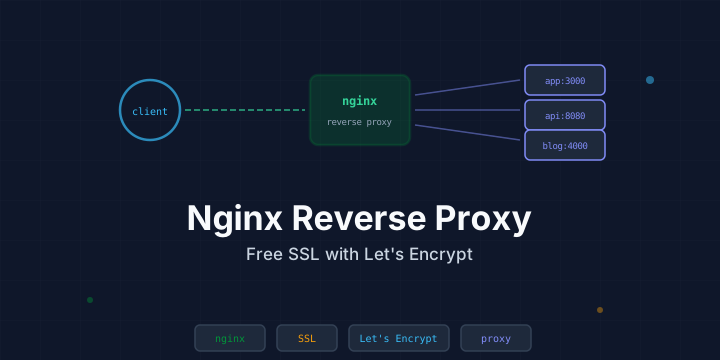
With Nginx as a reverse proxy:
https://app.example.com→ forwards tolocalhost:3000https://api.example.com→ forwards tolocalhost:8080https://blog.example.com→ forwards tolocalhost:4000
All through port 443 with HTTPS, and your backend services only need to listen on localhost.
Prerequisites
- A Linux server (Ubuntu 22.04+ or Debian 12+)
- A domain name with DNS pointed to your server’s IP
- Backend services running on localhost ports
Step 1: Install Nginx
sudo apt update
sudo apt install -y nginx
Verify Nginx is running:
sudo systemctl status nginx
curl http://localhost
Step 2: Basic Reverse Proxy Configuration
Create a configuration file for your site:
sudo nano /etc/nginx/sites-available/myappserver {
listen 80;
server_name app.example.com;
location / {
proxy_pass http://127.0.0.1:3000;
proxy_set_header Host $host;
proxy_set_header X-Real-IP $remote_addr;
proxy_set_header X-Forwarded-For $proxy_add_x_forwarded_for;
proxy_set_header X-Forwarded-Proto $scheme;
}
}Enable the site:
sudo ln -s /etc/nginx/sites-available/myapp /etc/nginx/sites-enabled/
sudo nginx -t          # Test configuration
sudo systemctl reload nginx
Understanding the Proxy Headers
| Header | Purpose |
|---|---|
Host | Preserves the original hostname |
X-Real-IP | Passes the client’s real IP address |
X-Forwarded-For | Chain of proxy IPs |
X-Forwarded-Proto | Whether client used http or https |
These headers let your backend application know the real client information, even though requests come from Nginx on localhost.
Step 3: Install Certbot for Free SSL
sudo apt install -y certbot python3-certbot-nginxStep 4: Obtain SSL Certificate
sudo certbot --nginx -d app.example.comCertbot will:
- Verify you own the domain (HTTP challenge)
- Obtain a certificate from Let’s Encrypt
- Automatically modify your Nginx config to add SSL
- Set up HTTP → HTTPS redirect
For multiple domains at once:
sudo certbot --nginx -d app.example.com -d api.example.com -d blog.example.comAutomatic Renewal
Certbot installs a systemd timer that renews certificates automatically. Verify:
sudo certbot renew --dry-runCertificates renew automatically 30 days before expiry. You can check the timer:
sudo systemctl list-timers | grep certbotStep 5: Final SSL Configuration
After Certbot modifies your config, it should look like this:
server {
    listen 80;
    server_name app.example.com;
    return 301 https://$server_name$request_uri;
}

server {
    listen 443 ssl http2;
    server_name app.example.com;

    ssl_certificate /etc/letsencrypt/live/app.example.com/fullchain.pem;
    ssl_certificate_key /etc/letsencrypt/live/app.example.com/privkey.pem;
    include /etc/letsencrypt/options-ssl-nginx.conf;
    ssl_dhparam /etc/letsencrypt/ssl-dhparams.pem;

    location / {
        proxy_pass http://127.0.0.1:3000;
        proxy_set_header Host $host;
        proxy_set_header X-Real-IP $remote_addr;
        proxy_set_header X-Forwarded-For $proxy_add_x_forwarded_for;
        proxy_set_header X-Forwarded-Proto $scheme;
    }
}
Multiple Sites on One Server
Create separate config files for each service:
API Backend
sudo nano /etc/nginx/sites-available/apiserver {
listen 80;
server_name api.example.com;
location / {
proxy_pass http://127.0.0.1:8080;
proxy_set_header Host $host;
proxy_set_header X-Real-IP $remote_addr;
proxy_set_header X-Forwarded-For $proxy_add_x_forwarded_for;
proxy_set_header X-Forwarded-Proto $scheme;
# CORS headers (if needed)
add_header Access-Control-Allow-Origin *;
add_header Access-Control-Allow-Methods "GET, POST, PUT, DELETE, OPTIONS";
add_header Access-Control-Allow-Headers "Authorization, Content-Type";
}
}Static Website
server {
    listen 80;
    server_name blog.example.com;

    root /var/www/blog;
    index index.html;

    location / {
        try_files $uri $uri/ =404;
    }
}
Enable all sites:
sudo ln -s /etc/nginx/sites-available/api /etc/nginx/sites-enabled/
sudo ln -s /etc/nginx/sites-available/blog /etc/nginx/sites-enabled/
sudo nginx -t
sudo systemctl reload nginx
sudo certbot --nginx -d api.example.com -d blog.example.com
WebSocket Support
If your application uses WebSockets (e.g., real-time chat, live dashboards):
location /ws {
    proxy_pass http://127.0.0.1:3000;
    proxy_http_version 1.1;
    proxy_set_header Upgrade $http_upgrade;
    proxy_set_header Connection "upgrade";
    proxy_set_header Host $host;
    proxy_read_timeout 86400;
}
Rate Limiting
Protect your services from abuse:
# Define rate limit zone (in http block or top of server block)
limit_req_zone $binary_remote_addr zone=api_limit:10m rate=10r/s;

server {
    listen 443 ssl http2;
    server_name api.example.com;

    location / {
        limit_req zone=api_limit burst=20 nodelay;
        proxy_pass http://127.0.0.1:8080;
        # ... other proxy headers
    }
}
This allows 10 requests per second per IP, with a burst of 20.
Caching Static Assets
location ~* \.(jpg|jpeg|png|gif|ico|css|js|woff2)$ {
    proxy_pass http://127.0.0.1:3000;
    proxy_cache_valid 200 7d;
    expires 7d;
    add_header Cache-Control "public, immutable";
}
Load Balancing
Distribute traffic across multiple backend instances:
upstream app_servers {
    server 127.0.0.1:3001;
    server 127.0.0.1:3002;
    server 127.0.0.1:3003;
}

server {
    listen 443 ssl http2;
    server_name app.example.com;

    location / {
        proxy_pass http://app_servers;
        proxy_set_header Host $host;
        proxy_set_header X-Real-IP $remote_addr;
    }
}
Load balancing methods:
- Round-robin (default) — Rotates through servers
least_conn— Sends to server with fewest connectionsip_hash— Same client always goes to same server
Security Headers
Add security headers to all responses:
server {
    # ... SSL config ...

    # Security headers
    add_header X-Frame-Options "SAMEORIGIN" always;
    add_header X-Content-Type-Options "nosniff" always;
    add_header X-XSS-Protection "1; mode=block" always;
    add_header Referrer-Policy "strict-origin-when-cross-origin" always;
    add_header Content-Security-Policy "default-src 'self'" always;
    add_header Strict-Transport-Security "max-age=31536000; includeSubDomains" always;

    location / {
        proxy_pass http://127.0.0.1:3000;
        # ... proxy headers ...
    }
}
Useful Nginx Commands
# Test configuration syntax
sudo nginx -t

# Reload config (no downtime)
sudo systemctl reload nginx

# Restart Nginx
sudo systemctl restart nginx

# View error logs
sudo tail -f /var/log/nginx/error.log

# View access logs
sudo tail -f /var/log/nginx/access.log

# Check which sites are enabled
ls -la /etc/nginx/sites-enabled/

# Disable a site
sudo rm /etc/nginx/sites-enabled/myapp
sudo systemctl reload nginx
Troubleshooting
502 Bad Gateway
The backend service isn’t running or Nginx can’t connect:
# Check if backend is running
curl http://127.0.0.1:3000

# Check Nginx error log
sudo tail -20 /var/log/nginx/error.log
504 Gateway Timeout
Backend is too slow to respond. Increase timeouts:
location / {
    proxy_pass http://127.0.0.1:3000;
    proxy_connect_timeout 60s;
    proxy_send_timeout 60s;
    proxy_read_timeout 60s;
}
Certificate Not Renewing
# Check renewal status
sudo certbot certificates

# Force renewal
sudo certbot renew --force-renewal

# Check timer
sudo systemctl status certbot.timer
Alternative: Caddy
If Nginx feels complex, Caddy is a simpler alternative with automatic HTTPS:
app.example.com {
    reverse_proxy localhost:3000
}

api.example.com {
    reverse_proxy localhost:8080
}
That’s the entire config — Caddy handles SSL automatically. Install with:
sudo apt install -y debian-keyring debian-archive-keyring apt-transport-https
curl -1sLf 'https://dl.cloudsmith.io/public/caddy/stable/gpg.key' | sudo gpg --dearmor -o /usr/share/keyrings/caddy-stable-archive-keyring.gpg
curl -1sLf 'https://dl.cloudsmith.io/public/caddy/stable/debian.deb.txt' | sudo tee /etc/apt/sources.list.d/caddy-stable.list
sudo apt update
sudo apt install caddy
Conclusion
Nginx as a reverse proxy is the standard approach for hosting multiple services on a single server. Combined with Certbot and Let’s Encrypt, you get free, auto-renewing SSL certificates with zero ongoing maintenance. Once you understand the basic proxy_pass pattern, adding new services is just a matter of creating a new config file and running certbot.