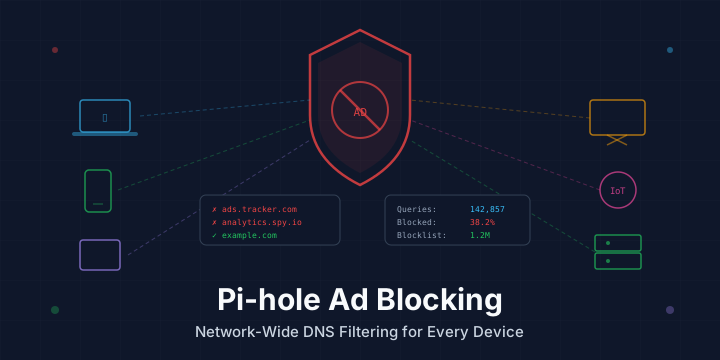
Pi-hole: Block Ads and Trackers Across Your Entire Network with DNS Filtering
Browser-based ad blockers like uBlock Origin work well, but they only protect a single browser on a single device. Your smart TV, phone apps, IoT devices, and gaming consoles still get bombarded with ads, trackers, and telemetry. Pi-hole solves this by acting as a DNS sinkhole — it intercepts DNS requests at the network level and blocks domains known to serve ads, tracking scripts, and malware before they ever reach your devices.
In this guide, you’ll install Pi-hole on a Linux machine (Raspberry Pi, VPS, or any Debian/Ubuntu server), configure your router to use it, and customize blocklists for maximum protection.
How Pi-hole Works
Every time a device on your network tries to load a webpage, it first asks a DNS server to translate a domain name (like ads.doubleclick.net) into an IP address. Pi-hole sits between your devices and the upstream DNS server:
- Device makes a DNS query → “What’s the IP for
ads.tracker.com?” - Pi-hole checks its blocklist → If the domain is on the list, Pi-hole returns
0.0.0.0(a dead end) - If not blocked → Pi-hole forwards the query to your chosen upstream DNS resolver (Cloudflare, Google, etc.)
- Result: Ads and trackers never load because the device can’t reach them
This approach has several advantages over browser extensions:
- Protects every device on the network — phones, tablets, smart TVs, IoT devices, game consoles
- Blocks in-app ads that browser extensions can’t touch
- Reduces bandwidth since ad content is never downloaded
- Improves page load times by eliminating dozens of tracking requests per page
- Works without any client-side software — just change your DNS settings
Prerequisites
Before you start, you’ll need:
- A Raspberry Pi (any model with Ethernet, Pi 3B+ or newer recommended), a spare Linux machine, or a VM/VPS
- Raspberry Pi OS Lite, Ubuntu Server, or Debian installed
- A static IP address for the Pi-hole machine on your local network
- SSH access to the machine
- Root or sudo access
Setting a Static IP
Pi-hole needs a static IP so your devices always know where to send DNS queries. On most Raspberry Pi or Debian systems, edit /etc/dhcpcd.conf:
sudo nano /etc/dhcpcd.confAdd the following at the bottom (adjust for your network):
interface eth0
static ip_address=192.168.1.100/24
static routers=192.168.1.1
static domain_name_servers=1.1.1.1 1.0.0.1
Restart the networking service:
sudo systemctl restart dhcpcdVerify your IP:
hostname -IInstalling Pi-hole
Pi-hole provides a one-command installer that handles everything:
curl -sSL https://install.pi-hole.net | bashNote: If you prefer not to pipe to bash, you can clone the repository and run the installer manually:
git clone --depth 1 https://github.com/pi-hole/pi-hole.git Pi-hole
cd Pi-hole/automated\ install/
sudo bash basic-install.sh
The installer walks you through several prompts:
- Upstream DNS Provider — Choose Cloudflare (
1.1.1.1), Google (8.8.8.8), or any custom resolver. Cloudflare is recommended for speed and privacy. - Blocklists — Accept the default StevenBlack list to start. You’ll add more later.
- Protocols — Enable both IPv4 and IPv6 unless you don’t use IPv6.
- Static IP confirmation — Confirm the static IP you set earlier.
- Web admin interface — Select On to enable the dashboard.
- Web server (lighttpd) — Select On unless you’re running your own web server.
- Query logging — Enable it for visibility into what’s being blocked.
- Privacy mode — Choose your preferred level (0 shows everything, which is useful for debugging).
Once complete, the installer displays your admin password. Save it. You can also reset it later:
pihole -a -pAccessing the Web Dashboard
Open a browser and navigate to:
http://192.168.1.100/adminReplace 192.168.1.100 with your Pi-hole’s IP. Log in with the password from the installer.
The dashboard shows real-time statistics:
- Total queries processed
- Queries blocked (percentage and count)
- Top blocked domains (you’ll see ad networks, trackers, telemetry endpoints)
- Top permitted domains
- Query log with per-device breakdowns
Configuring Your Network to Use Pi-hole
There are two approaches to routing DNS through Pi-hole:
Option 1: Configure Your Router (Recommended)
This is the best approach because it automatically covers every device that connects to your network.
- Log in to your router’s admin panel (usually
192.168.1.1or192.168.0.1) - Find the DHCP settings or DNS settings
- Set the Primary DNS to your Pi-hole’s IP:
192.168.1.100 - Set the Secondary DNS to the same IP (or leave it blank — don’t set it to a public DNS like
8.8.8.8or devices will bypass Pi-hole when it’s slow) - Save and reboot the router
After this, every device that connects to your WiFi or Ethernet will use Pi-hole for DNS.
Option 2: Configure Individual Devices
If you can’t change router settings, configure DNS on each device:
Linux:
sudo nano /etc/resolv.confnameserver 192.168.1.100macOS:
System Preferences → Network → Advanced → DNS → Add 192.168.1.100Windows:
Settings → Network & Internet → Change adapter options → Properties → IPv4 → Use the following DNS: 192.168.1.100iOS/Android:
Go to WiFi settings for your network and set DNS to 192.168.1.100.
Adding More Blocklists
The default blocklist is good, but you can dramatically increase coverage by adding community-maintained lists. Go to Group Management → Adlists in the Pi-hole admin panel, or use the command line.
Recommended Blocklists
Add these URLs in the Pi-hole admin under Adlists:
| List | URL | Description |
|---|---|---|
| StevenBlack Unified | https://raw.githubusercontent.com/StevenBlack/hosts/master/hosts | Ads + malware (included by default) |
| OISD Big | https://big.oisd.nl/domainswild | Comprehensive ad/tracking/malware list |
| Hagezi Multi Pro | https://cdn.jsdelivr.net/gh/hagezi/dns-blocklists@latest/wildcard/pro.txt | Multi-source pro blocklist |
| AdGuard DNS Filter | https://adguardteam.github.io/AdGuardSDNSFilter/Filters/filter.txt | AdGuard’s curated DNS filter |
| Developer Dan’s Ads & Tracking | https://www.github.developerdan.com/hosts/lists/ads-and-tracking-extended.txt | Extended ad and tracking list |
After adding lists, update the gravity database:
pihole -gThis downloads all blocklists and compiles them into Pi-hole’s gravity database. You can also do this from the web interface under Tools → Update Gravity.
Whitelisting Domains
Aggressive blocklists can occasionally break legitimate services. If something stops working:
- Check the Query Log in the admin panel to see what’s being blocked
- Find the blocked domain causing the issue
- Whitelist it:
pihole -w example.comOr through the web interface: Whitelist → Add domain.
Common domains you might need to whitelist:
# Microsoft services
pihole -w login.microsoftonline.com
pihole -w outlook.office365.com

# Apple services
pihole -w apple.com
pihole -w icloud.com

# Spotify
pihole -w spclient.wg.spotify.com

# Samsung Smart TV
pihole -w cdn.samsungcloudsolution.com
Running Pi-hole in Docker
If you’d rather run Pi-hole in a Docker container (great for servers that run other services), create a docker-compose.yml:
version: "3"

services:
  pihole:
    container_name: pihole
    image: pihole/pihole:latest
    ports:
      - "53:53/tcp"
      - "53:53/udp"
      - "80:80/tcp"
    environment:
      TZ: 'America/New_York'
      WEBPASSWORD: 'your-secure-password-here'
    volumes:
      - './etc-pihole:/etc/pihole'
      - './etc-dnsmasq.d:/etc/dnsmasq.d'
    cap_add:
      - NET_ADMIN
    restart: unless-stopped
Start it with:
docker compose up -dCheck logs:
docker logs piholeThe official Docker image is maintained at https://github.com/pi-hole/docker-pi-hole.
Useful Pi-hole CLI Commands
Pi-hole includes a powerful command-line tool:
# Check Pi-hole status
pihole status

# Update Pi-hole
pihole -up

# Update gravity (blocklists)
pihole -g

# Temporarily disable Pi-hole (e.g., for 5 minutes)
pihole disable 5m

# Re-enable Pi-hole
pihole enable

# Tail the query log in real-time
pihole -t

# Show top blocked domains
pihole -t -s

# Whitelist a domain
pihole -w domain.com

# Blacklist a domain
pihole -b domain.com

# Display version info
pihole -v

# Flush the log
pihole flush

# Reconfigure Pi-hole (re-run installer)
pihole -r
Setting Up Unbound as a Recursive DNS Resolver
For maximum privacy, you can run your own recursive DNS resolver alongside Pi-hole using Unbound, instead of forwarding queries to Cloudflare or Google:
sudo apt install unboundCreate the configuration file:
sudo nano /etc/unbound/unbound.conf.d/pi-hole.confserver:
verbosity: 0
interface: 127.0.0.1
port: 5335
do-ip4: yes
do-udp: yes
do-tcp: yes
do-ip6: no
# Security
harden-glue: yes
harden-dnssec-stripped: yes
use-caps-for-id: no
edns-buffer-size: 1232
# Performance
prefetch: yes
num-threads: 1
so-rcvbuf: 1m
# Privacy
private-address: 192.168.0.0/16
private-address: 172.16.0.0/12
private-address: 10.0.0.0/8Restart Unbound:
sudo systemctl restart unboundTest it:
dig google.com @127.0.0.1 -p 5335Then in the Pi-hole admin panel, go to Settings → DNS and set the custom upstream DNS to 127.0.0.1#5335. Uncheck all other upstream DNS providers.
Now your DNS queries go directly to the authoritative name servers — no third-party resolver sees your queries.
Monitoring and Maintenance
Keep Pi-hole Updated
pihole -upThis updates Pi-hole core, the web interface, and FTL (the DNS engine).
Check System Resources
Pi-hole is lightweight. On a Raspberry Pi 3B+, expect:
- RAM usage: ~60–100 MB
- CPU usage: < 5% under normal load
- Storage: ~200 MB for the installation, plus logs
Backup Your Configuration
# Create a teleporter backup (includes settings, blocklists, whitelist, blacklist)
pihole -a -t
This creates a .tar.gz file you can import on another Pi-hole instance via Settings → Teleporter in the admin panel.
Troubleshooting
Devices not using Pi-hole:
- Verify the device’s DNS is set to Pi-hole’s IP:
nslookup google.com 192.168.1.100 - Some devices (Google Home, Chromecast) hardcode
8.8.8.8. Use firewall rules to redirect port 53 traffic to Pi-hole.
Legitimate site broken:
- Check the query log for the blocked domain and whitelist it:
pihole -w domain.com
Pi-hole not resolving anything:
- Check if the upstream DNS is reachable:
dig google.com @1.1.1.1 - Restart Pi-hole FTL:
sudo systemctl restart pihole-FTL
High memory usage on logs:
- Flush old logs:
pihole flush - Reduce log retention in Settings → Privacy.
Conclusion
Pi-hole is one of the most impactful self-hosted tools you can run. A single Raspberry Pi (or Docker container) blocks ads, trackers, and malware across every device on your network — smart TVs, phones, tablets, IoT gadgets — without installing anything on the devices themselves. Combined with Unbound for recursive DNS resolution, you get a privacy-respecting, ad-free network with full visibility into what every device is doing.
For more information, visit the official Pi-hole documentation at https://docs.pi-hole.net and the community forums at https://discourse.pi-hole.net.