Python Virtual Environments: venv, pip, and Dependency Management
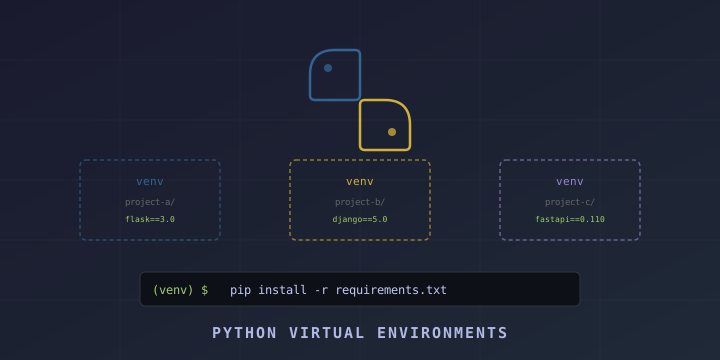
Every Python developer eventually hits the same problem: Project A needs flask==2.3 but Project B needs flask==3.0. Installing both globally breaks one of them. Virtual environments solve this completely by giving each project its own isolated Python installation with its own packages.
This guide covers everything you need: creating virtual environments with venv, managing packages with pip, freezing dependencies, and modern alternatives like uv and poetry.
Why Virtual Environments?
Without virtual environments, all Python packages install globally. This causes:
- Version conflicts: Two projects need different versions of the same package
- Polluted global environment: Hundreds of packages installed that most projects don’t need
- Reproducibility issues: “Works on my machine” — because your global packages differ from production
- Permission issues: Global installs may require
sudo
Virtual environments give each project a clean, isolated Python with only the packages it needs.
Creating Virtual Environments with venv
Python 3.3+ includes venv in the standard library — no installation needed.
Create a Virtual Environment
# Navigate to your project
cd my-project

# Create a virtual environment named "venv"
python3 -m venv venv
This creates a venv/ directory containing:
- A copy of the Python interpreter
- A
pipinstallation - An empty
site-packagesdirectory for your project’s packages
Activate the Virtual Environment
# Linux / macOS
source venv/bin/activate

# Windows (PowerShell)
.\venv\Scripts\Activate.ps1

# Windows (cmd.exe)
.\venv\Scripts\activate.bat
When activated, your prompt changes to show (venv):
(venv) $ python --version
Python 3.12.1

(venv) $ which python
/home/user/my-project/venv/bin/python
Deactivate
deactivateDelete a Virtual Environment
Just delete the directory:
rm -rf venvNo uninstaller needed — it’s just a folder.
Managing Packages with pip
With your virtual environment activated, use pip to install packages:
Installing Packages
# Install a package
pip install flask

# Install a specific version
pip install flask==3.0.0

# Install minimum version
pip install "flask>=3.0"

# Install multiple packages
pip install flask sqlalchemy redis

# Install from a requirements file
pip install -r requirements.txt
Listing Installed Packages
# List all installed packages
pip list

# Show outdated packages
pip list --outdated

# Show details about a specific package
pip show flask
Upgrading and Removing
# Upgrade a package
pip install --upgrade flask

# Upgrade pip itself
pip install --upgrade pip

# Uninstall a package
pip uninstall flask

# Uninstall without confirmation
pip uninstall -y flask
Freezing Dependencies
The pip freeze command outputs all installed packages and their exact versions — this is how you create reproducible environments.
Create requirements.txt
pip freeze > requirements.txtThe file looks like:
click==8.1.7
flask==3.0.0
itsdangerous==2.1.2
jinja2==3.1.2
markupsafe==2.1.3
werkzeug==3.0.1
Install from requirements.txt
On another machine or in CI/CD:
python3 -m venv venv
source venv/bin/activate
pip install -r requirements.txt
This installs the exact same versions, ensuring reproducible builds.
Best Practice: Separate Dev Dependencies
Create two files:
requirements.txt (production):
flask==3.0.0
gunicorn==21.2.0
sqlalchemy==2.0.23
requirements-dev.txt (development):
-r requirements.txt
pytest==7.4.3
black==23.12.0
flake8==6.1.0
mypy==1.7.1
Install for development:
pip install -r requirements-dev.txt.gitignore for Virtual Environments
Always add your virtual environment to .gitignore:
# Virtual environments
venv/
.venv/
env/
.env/

# Python cache
__pycache__/
*.pyc
*.pyo

# Distribution
*.egg-info/
dist/
build/
Never commit the venv/ directory. Commit requirements.txt instead — it’s small and portable.
Common Virtual Environment Patterns
Pattern 1: One venv Per Project
The most common and recommended approach:
my-project/
├── venv/               # Virtual environment (gitignored)
├── requirements.txt    # Dependencies
├── src/
│   └── app.py
└── .gitignore
Pattern 2: Using .venv (Dot Prefix)
Many developers prefer .venv (hidden directory):
python3 -m venv .venv
source .venv/bin/activate
VS Code automatically detects .venv and uses it as the Python interpreter.
Pattern 3: Makefile for Common Tasks
.PHONY: setup install run test clean

setup:
	python3 -m venv venv
	. venv/bin/activate && pip install -r requirements-dev.txt

install:
	. venv/bin/activate && pip install -r requirements.txt

run:
	. venv/bin/activate && python src/app.py

test:
	. venv/bin/activate && pytest tests/

clean:
	rm -rf venv __pycache__ .pytest_cache
VS Code Integration
VS Code can automatically detect and use virtual environments.
- Open your project folder in VS Code
- Press
Ctrl+Shift+P→ “Python: Select Interpreter” - Choose the interpreter from your
venv/directory
Or add to .vscode/settings.json:
{
  "python.defaultInterpreterPath": "${workspaceFolder}/venv/bin/python"
}
VS Code will automatically activate the virtual environment in its integrated terminal.
Modern Alternatives
uv — Ultra-Fast Python Package Manager
uv by Astral (makers of Ruff) is a blazing-fast replacement for pip and venv, written in Rust:
# Install uv
curl -LsSf https://astral.sh/uv/install.sh | sh

# Create a virtual environment
uv venv

# Install packages (10-100x faster than pip)
uv pip install flask

# Install from requirements.txt
uv pip install -r requirements.txt

# Freeze dependencies
uv pip freeze > requirements.txt
uv is a drop-in replacement — same commands, dramatically faster. It’s especially noticeable on large projects with many dependencies.
Poetry — Dependency Management + Packaging
Poetry manages dependencies, virtual environments, and packaging in one tool:
# Install Poetry
curl -sSL https://install.python-poetry.org | python3 -

# Create a new project
poetry new my-project

# Or initialize in existing project
poetry init

# Add dependencies
poetry add flask
poetry add --group dev pytest

# Install all dependencies
poetry install

# Run commands in the virtual environment
poetry run python app.py

# Activate the shell
poetry shell
Poetry uses pyproject.toml instead of requirements.txt:
[tool.poetry.dependencies]
python = "^3.11"
flask = "^3.0"

[tool.poetry.group.dev.dependencies]
pytest = "^7.4"
pipenv
Pipenv combines pip and venv with a Pipfile:
pip install pipenv

# Install a package (creates venv automatically)
pipenv install flask

# Install dev dependency
pipenv install --dev pytest

# Activate the environment
pipenv shell

# Run a command
pipenv run python app.py
pyenv — Manage Multiple Python Versions
If you need different Python versions for different projects, use pyenv:
# Install pyenv (macOS)
brew install pyenv

# Install a Python version
pyenv install 3.12.1
pyenv install 3.11.7

# Set Python version for a project
cd my-project
pyenv local 3.12.1

# Create a venv with the correct Python version
python3 -m venv venv
Combine pyenv with venv for full version + dependency isolation.
Quick Reference
# Create virtual environment
python3 -m venv venv

# Activate (Linux/macOS)
source venv/bin/activate

# Activate (Windows)
.\venv\Scripts\activate

# Install packages
pip install package-name

# Freeze dependencies
pip freeze > requirements.txt

# Install from requirements
pip install -r requirements.txt

# Deactivate
deactivate

# Delete virtual environment
rm -rf venv
Summary
Virtual environments are non-negotiable for Python development. They prevent dependency conflicts, make projects reproducible, and keep your system clean.
Key resources:
- venv docs: https://docs.python.org/3/library/venv.html
- pip docs: https://pip.pypa.io
- uv: https://github.com/astral-sh/uv
- Poetry: https://python-poetry.org
- pyenv: https://github.com/pyenv/pyenv
Start every Python project with python3 -m venv venv — your future self will thank you.