Rsync Mastery: Fast, Incremental File Transfers and Backups
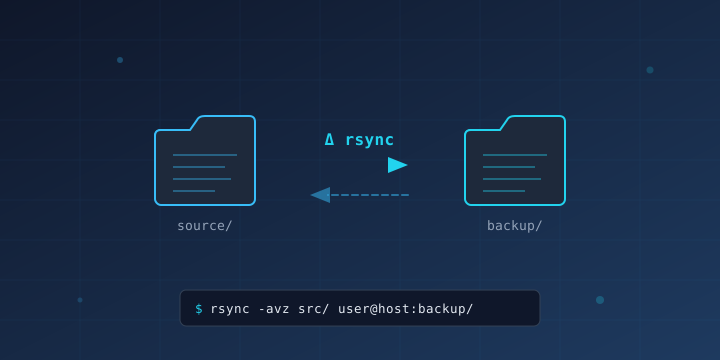
If you manage servers, maintain backups, or regularly move files between machines, rsync is one of the most powerful and efficient tools at your disposal. Unlike basic copy commands (cp, scp), rsync uses a delta-transfer algorithm — it only sends the differences between source and destination files, making subsequent transfers dramatically faster.
This guide covers everything from basic local copies to automated remote backups over SSH, with real-world examples you can start using immediately.
What Is Rsync?
rsync (Remote Sync) is an open-source utility for efficiently transferring and synchronizing files across local and remote systems. It was first released in 1996 by Andrew Tridgell and Paul Mackerras, and it remains a standard tool on virtually every Linux distribution and macOS.
Key features:
- Delta transfers — only changed bytes are sent, not entire files
- Compression — data can be compressed during transfer with
-z - Preservation — timestamps, permissions, ownership, symlinks are maintained
- SSH support — secure remote transfers out of the box
- Dry run mode — preview changes before committing
- Exclude patterns — skip files or directories by pattern
- Bandwidth limiting — throttle transfer speed
Installing Rsync
Rsync comes pre-installed on most Linux distributions and macOS. Verify with:
rsync --versionIf it’s not installed:
# Debian/Ubuntu
sudo apt update && sudo apt install rsync -y

# CentOS/RHEL/Fedora
sudo dnf install rsync -y

# macOS (via Homebrew for latest version)
brew install rsync

# Arch Linux
sudo pacman -S rsync
Basic Syntax
rsync [OPTIONS] SOURCE DESTINATIONThe source and destination can be local paths or remote paths in the format user@host:path.
Essential Flags You Should Know
| Flag | Purpose |
|---|---|
-a | Archive mode — preserves permissions, timestamps, symlinks, ownership (equals -rlptgoD) |
-v | Verbose — show files being transferred |
-z | Compress data during transfer |
-h | Human-readable output (file sizes in KB, MB, etc.) |
-P | Show progress + keep partially transferred files (equals --progress --partial) |
--delete | Delete files in destination that don’t exist in source |
-n or --dry-run | Simulate the transfer without making changes |
-e | Specify the remote shell to use (e.g., -e ssh) |
--exclude | Exclude files matching a pattern |
--bwlimit | Limit bandwidth in KB/s |
Local File Synchronization
Copy a Directory
rsync -avh /home/user/documents/ /mnt/backup/documents/Important: The trailing slash on the source (documents/) means “copy the contents of this directory.” Without the trailing slash, rsync would create documents/documents/ at the destination.
# With trailing slash — copies contents INTO /mnt/backup/documents/
rsync -avh /home/user/documents/ /mnt/backup/documents/

# Without trailing slash — creates /mnt/backup/documents/documents/
rsync -avh /home/user/documents /mnt/backup/documents/
Dry Run First
Always preview before large transfers:
rsync -avhn /home/user/projects/ /mnt/backup/projects/The -n flag shows what would happen without actually copying anything. This is invaluable before using --delete.
Mirror a Directory (with Delete)
To make the destination an exact copy of the source, removing files that no longer exist in the source:
rsync -avh --delete /home/user/website/ /mnt/backup/website/⚠️ Warning: --delete will permanently remove files from the destination. Always do a dry run first with -n.
Remote Transfers Over SSH
Rsync uses SSH by default for remote transfers, so your existing SSH keys and config work automatically.
Push Files to a Remote Server
rsync -avzP /home/user/project/ deploy@server.example.com:/var/www/project/This transfers files from your local machine to the remote server, compressing data in transit (-z) and showing progress (-P).
Pull Files from a Remote Server
rsync -avzP deploy@server.example.com:/var/www/project/ /home/user/project-backup/Use a Custom SSH Port
If your server uses a non-standard SSH port:
rsync -avzP -e "ssh -p 2222" /home/user/data/ user@server.example.com:/backup/data/Use a Specific SSH Key
rsync -avzP -e "ssh -i ~/.ssh/deploy_key" /home/user/data/ user@server.example.com:/backup/Excluding Files and Directories
Exclude Specific Patterns
rsync -avh --exclude='*.log' --exclude='.git' --exclude='node_modules' /home/user/project/ /mnt/backup/project/Use an Exclude File
For complex exclusion rules, create a file:
cat > /home/user/rsync-excludes.txt << 'EOF'
*.log
*.tmp
.git/
node_modules/
__pycache__/
.DS_Store
*.swp
.env
EOF
Then reference it:
rsync -avh --exclude-from='/home/user/rsync-excludes.txt' /home/user/project/ /mnt/backup/project/Bandwidth Limiting
When syncing over a shared network connection, limit rsync’s bandwidth usage:
# Limit to 5 MB/s
rsync -avzP --bwlimit=5000 /home/user/large-dataset/ user@server.example.com:/data/
The value is in kilobytes per second, so 5000 = ~5 MB/s.
Real-World Backup Scripts
Daily Local Backup Script
Create a script at ~/scripts/daily-backup.sh:
#!/bin/bash
# Daily backup of important directories

SOURCE_DIRS=(
    "/home/user/documents"
    "/home/user/projects"
    "/home/user/pictures"
)

BACKUP_BASE="/mnt/external/backups"
LOG_FILE="/var/log/rsync-backup.log"
DATE=$(date '+%Y-%m-%d %H:%M:%S')

echo "[$DATE] Backup started" >> "$LOG_FILE"

for dir in "${SOURCE_DIRS[@]}"; do
    dirname=$(basename "$dir")
    echo "[$DATE] Syncing $dir..." >> "$LOG_FILE"
    rsync -ah --delete \
        --exclude='.cache' \
        --exclude='node_modules' \
        --exclude='.git' \
        "$dir/" "$BACKUP_BASE/$dirname/" 2>&1 >> "$LOG_FILE"
done

echo "[$DATE] Backup completed" >> "$LOG_FILE"
Make it executable and add it to cron:
chmod +x ~/scripts/daily-backup.sh

# Run daily at 2 AM
crontab -e
# Add: 0 2 * * * /home/user/scripts/daily-backup.sh
Remote Server Backup Script
Back up a production server to your local backup server:
#!/bin/bash
# Remote server backup over SSH

REMOTE_HOST="deploy@production.example.com"
REMOTE_DIRS=(
    "/var/www/html"
    "/etc/nginx"
    "/etc/letsencrypt"
    "/home/deploy/docker-compose"
)

LOCAL_BACKUP="/mnt/backup/production"
DATE=$(date '+%Y-%m-%d')
LOG="/var/log/remote-backup.log"

echo "[$DATE] Remote backup started" >> "$LOG"

for dir in "${REMOTE_DIRS[@]}"; do
    dirname=$(basename "$dir")
    mkdir -p "$LOCAL_BACKUP/$dirname"
    rsync -azh --delete \
        -e "ssh -i /home/backup/.ssh/backup_key -p 22" \
        "$REMOTE_HOST:$dir/" "$LOCAL_BACKUP/$dirname/" 2>&1 >> "$LOG"
    echo "  Synced $dir -> $LOCAL_BACKUP/$dirname" >> "$LOG"
done

echo "[$DATE] Remote backup completed" >> "$LOG"
Incremental Backups with Hard Links
Use rsync with --link-dest to create space-efficient incremental backups. Each backup looks like a full backup, but unchanged files are hard-linked to previous versions:
#!/bin/bash
# Incremental backup with hard links

SOURCE="/home/user/data/"
BACKUP_ROOT="/mnt/backup/incremental"
LATEST="$BACKUP_ROOT/latest"
DATE=$(date '+%Y-%m-%d_%H-%M-%S')
DEST="$BACKUP_ROOT/$DATE"

mkdir -p "$DEST"

rsync -ah --delete \
    --link-dest="$LATEST" \
    "$SOURCE" "$DEST/"

# Update the 'latest' symlink
rm -f "$LATEST"
ln -s "$DEST" "$LATEST"

# Remove backups older than 30 days
find "$BACKUP_ROOT" -maxdepth 1 -type d -mtime +30 -exec rm -rf {} +

echo "Incremental backup completed: $DEST"
This approach is used by tools like Time Machine on macOS. Each backup folder contains a complete snapshot, but disk usage only increases by the size of changed files.
Rsync over a Slow or Unstable Connection
For unreliable networks, use --partial and --append-verify:
rsync -avzP --append-verify --timeout=60 \
/home/user/large-file.iso user@server.example.com:/data/--partialkeeps partially transferred files (included with-P)--append-verifyresumes transfers from where they left off and verifies with a checksum--timeout=60disconnects if idle for 60 seconds
Rsync vs Other Tools
| Feature | rsync | scp | cp | rclone |
|---|---|---|---|---|
| Delta transfers | ✅ | ❌ | ❌ | ✅ |
| Remote SSH | ✅ | ✅ | ❌ | ✅ |
| Cloud storage | ❌ | ❌ | ❌ | ✅ |
| Compression | ✅ | ✅ | ❌ | ✅ |
| Preserve permissions | ✅ | ✅ | ✅ | Partial |
| Exclude patterns | ✅ | ❌ | ❌ | ✅ |
| Bandwidth limiting | ✅ | ✅ | ❌ | ✅ |
| Dry run | ✅ | ❌ | ❌ | ✅ |
Use rsync for file system-to-file system sync. If you need cloud storage (S3, Google Drive, Backblaze B2), consider rclone which offers a similar interface for cloud backends.
Useful Rsync One-Liners
# Sync and show only changed files
rsync -avhi --out-format='%i %n' /source/ /dest/

# Copy only files modified in the last 24 hours
find /source -mtime -1 -print0 | rsync -avh --files-from=- --from0 / /dest/

# Sync only specific file types
rsync -avh --include='*.jpg' --include='*.png' --exclude='*' /photos/ /backup/photos/

# Check what's different between two directories (without copying)
rsync -avhn --delete /dir1/ /dir2/

# Move files (copy then delete from source)
rsync -avh --remove-source-files /source/ /dest/
Troubleshooting Common Issues
”Permission denied” on Remote
Ensure your SSH key is authorized on the remote host, or use -e "ssh -i /path/to/key". Also check that the remote user has write access to the destination directory.
Trailing Slash Confusion
This is the #1 rsync gotcha:
# Copies contents of src INTO dest
rsync -avh src/ dest/

# Copies the src FOLDER into dest (creates dest/src/)
rsync -avh src dest/
Symlink Handling
By default in archive mode (-a), rsync copies symlinks as symlinks. To follow symlinks and copy the actual files:
rsync -avhL /source/ /dest/Transfer Seems Slow
Enable compression for remote transfers (-z), but don’t use it for local copies or fast local networks — the CPU overhead of compression will slow things down.
Security Considerations
- Always use SSH for remote transfers (this is the default)
- Use SSH key authentication instead of passwords
- Restrict the backup SSH key with
command=in~/.ssh/authorized_keysto limit what the key can do - Consider using
--chownand--chmodto set correct ownership and permissions at the destination
Example restricted SSH key in authorized_keys:
command="rsync --server --sender -logDtpre.iLsfxCIvu . /var/www/",no-port-forwarding,no-agent-forwarding,no-pty ssh-ed25519 AAAA... backup@localSummary
rsync is a battle-tested tool that belongs in every sysadmin’s and developer’s toolkit. The key commands to remember:
# Basic local sync
rsync -avh /source/ /destination/

# Remote sync over SSH
rsync -avzP /local/ user@host:/remote/

# Mirror with delete (careful!)
rsync -avh --delete /source/ /destination/

# Dry run (always do this first)
rsync -avhn --delete /source/ /destination/
Combine rsync with cron jobs for automated backups, and you have a reliable, efficient backup system that costs nothing and runs anywhere.