Tailscale: Zero-Config Mesh VPN That Just Works
Setting up a traditional VPN like WireGuard or OpenVPN requires configuring servers, opening ports, managing keys, and dealing with NAT traversal. Tailscale eliminates all of that. It creates a secure mesh network between your devices — laptops, phones, servers, Raspberry Pis, cloud VMs — and every device can talk directly to every other device, no matter where they are.
Built on top of WireGuard, Tailscale handles all the complexity: key exchange, NAT traversal, firewall piercing, and DNS. You install it, log in, and your devices are connected.
What is Tailscale?
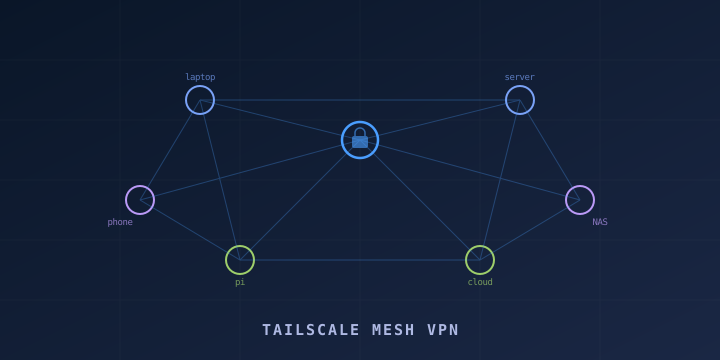
Tailscale is a mesh VPN service built on WireGuard. Unlike traditional VPNs where all traffic routes through a central server, Tailscale creates direct peer-to-peer encrypted connections between your devices.
Key features:
- Zero configuration: No ports to open, no firewall rules to create
- Mesh topology: Devices connect directly to each other, not through a central server
- Built on WireGuard: Uses the WireGuard protocol for fast, modern encryption
- NAT traversal: Works behind firewalls, NAT, and double NAT without port forwarding
- MagicDNS: Access devices by hostname (e.g.,
my-laptop) instead of IP addresses - ACLs: Fine-grained access control for who can access what
- Free tier: Up to 100 devices for personal use
Official site: https://tailscale.com
How Tailscale Works
Traditional VPNs use a hub-and-spoke model: all traffic goes through one server. Tailscale uses a mesh model:
- Coordination server: Tailscale’s control plane handles authentication and key distribution (your traffic never passes through it)
- Direct connections: Devices establish direct WireGuard tunnels to each other using NAT traversal techniques
- DERP relays: If direct connection fails (rare), traffic is relayed through Tailscale’s encrypted relay servers
Each device gets a stable IP address in the 100.x.y.z range (from the CGNAT block) that stays the same regardless of the device’s physical network.
Installing Tailscale
macOS
# Via Homebrew
brew install --cask tailscale

# Or download from the Mac App Store
Linux (Ubuntu/Debian)
curl -fsSL https://tailscale.com/install.sh | shOr manually:
# Add Tailscale's package signing key and repository
curl -fsSL https://pkgs.tailscale.com/stable/ubuntu/jammy.noarmor.gpg | sudo tee /usr/share/keyrings/tailscale-archive-keyring.gpg >/dev/null
curl -fsSL https://pkgs.tailscale.com/stable/ubuntu/jammy.tailscale-keyring.list | sudo tee /etc/apt/sources.list.d/tailscale.list

sudo apt-get update
sudo apt-get install tailscale
Windows
Download the installer from https://tailscale.com/download/windows.
iOS and Android
Install from the App Store or Google Play Store — search for “Tailscale.”
Docker
docker run -d \
  --name=tailscale \
  --hostname=my-container \
  --cap-add=NET_ADMIN \
  --cap-add=NET_RAW \
  -v /var/lib/tailscale:/var/lib/tailscale \
  -v /dev/net/tun:/dev/net/tun \
  -e TS_AUTHKEY=tskey-auth-xxxxx \
  tailscale/tailscale
Getting Started
Step 1: Start Tailscale
After installing, start Tailscale and authenticate:
sudo tailscale upThis opens a browser window to log in with your identity provider (Google, Microsoft, GitHub, etc.). Once authenticated, the device joins your tailnet (your private network).
Step 2: Check Status
# Show your Tailscale IP and connected peers
tailscale status

# Show detailed information
tailscale status --json | jq
You’ll see output like:
100.64.0.1    my-laptop       user@example.com  linux   -
100.64.0.2    my-phone        user@example.com  iOS     -
100.64.0.3    home-server     user@example.com  linux   -
Step 3: Connect Between Devices
Now any device on your tailnet can reach any other device:
# SSH to your home server from anywhere
ssh user@home-server

# Or use the Tailscale IP
ssh user@100.64.0.3

# Ping another device
tailscale ping my-phone
No port forwarding. No dynamic DNS. No firewall changes. It just works.
MagicDNS
Tailscale includes MagicDNS which lets you access devices by name instead of IP. Enable it in the admin console at https://login.tailscale.com/admin/dns.
Once enabled:
# Instead of remembering IPs
ssh user@100.64.0.3

# Use the hostname
ssh user@home-server

# Access web services
curl http://home-server:8080
You can also set a custom tailnet name (e.g., mynet.ts.net) so devices are accessible at device-name.mynet.ts.net.
Subnet Routing
Want to access devices on your home LAN that don’t have Tailscale installed (printers, IoT devices, NAS)? Set up a subnet router.
On the device that will act as a router (e.g., your Raspberry Pi on the home network):
# Enable IP forwarding
echo 'net.ipv4.ip_forward = 1' | sudo tee -a /etc/sysctl.d/99-tailscale.conf
echo 'net.ipv6.conf.all.forwarding = 1' | sudo tee -a /etc/sysctl.d/99-tailscale.conf
sudo sysctl -p /etc/sysctl.d/99-tailscale.conf

# Advertise your local subnet
sudo tailscale up --advertise-routes=192.168.1.0/24
Then approve the route in the Tailscale admin console. Now any device on your tailnet can access 192.168.1.x devices through the subnet router.
Exit Nodes
An exit node routes all your internet traffic through another device on your tailnet — essentially turning it into a traditional VPN for internet access.
On the device you want to use as an exit node (e.g., a VPS):
sudo tailscale up --advertise-exit-nodeApprove it in the admin console, then on the client:
# Use the exit node
sudo tailscale up --exit-node=my-vps

# Stop using the exit node
sudo tailscale up --exit-node=
This is useful for:
- Accessing geo-restricted content through a VPS in another country
- Securing traffic on public Wi-Fi
- Bypassing restrictive network firewalls
Tailscale SSH
Tailscale can replace your SSH keys entirely with Tailscale SSH, which uses your Tailscale identity for authentication:
# On the server, enable Tailscale SSH
sudo tailscale up --ssh
Configure SSH rules in the admin console ACLs:
{
  "ssh": [
    {
      "action": "accept",
      "src": ["autogroup:members"],
      "dst": ["autogroup:self"],
      "users": ["autogroup:nonroot"]
    }
  ]
}
Now you can SSH without managing keys:
ssh user@home-server
# Authenticated via Tailscale identity
Sharing with Others
You can share specific devices with people outside your tailnet using node sharing:
# Share a device with another Tailscale user
tailscale share add home-server user@friend.com
Or use the admin console to share nodes. The shared user can only access the specific devices you share, not your entire network.
Tailscale Funnel
Tailscale Funnel lets you expose a local service to the public internet through Tailscale’s infrastructure — no port forwarding or public IP needed:
# Expose local port 8080 to the internet
tailscale funnel 8080

# Your service is now available at https://your-device.your-tailnet.ts.net
This is similar to Cloudflare Tunnels but integrated into Tailscale.
Access Control Lists (ACLs)
By default, all devices on your tailnet can communicate. ACLs let you restrict access:
{
  "acls": [
    {
      "action": "accept",
      "src": ["group:admins"],
      "dst": ["*:*"]
    },
    {
      "action": "accept",
      "src": ["group:developers"],
      "dst": ["tag:dev-servers:22,80,443"]
    }
  ],
  "groups": {
    "group:admins": ["admin@example.com"],
    "group:developers": ["dev1@example.com", "dev2@example.com"]
  },
  "tagOwners": {
    "tag:dev-servers": ["group:admins"]
  }
}
Edit ACLs at https://login.tailscale.com/admin/acls.
Tailscale vs WireGuard
| Feature | Tailscale | WireGuard (manual) |
|---|---|---|
| Setup time | Minutes | Hours |
| NAT traversal | Automatic | Manual (port forwarding) |
| Key management | Automatic | Manual |
| Mesh topology | Built-in | Manual configuration |
| DNS | MagicDNS included | Manual |
| ACLs | Built-in | iptables/nftables |
| Multi-platform | All platforms | All platforms |
| Cost | Free (100 devices) | Free |
| Self-hosted option | Headscale | Yes |
If you want full control and don’t mind configuration, use WireGuard directly. If you want it to just work, use Tailscale.
Headscale: Self-Hosted Alternative
If you want to self-host the Tailscale coordination server, use Headscale — an open-source implementation:
Headscale replaces Tailscale’s control server while still using the official Tailscale clients. You get the same mesh VPN without relying on Tailscale’s infrastructure.
Useful Commands
# Check connection status
tailscale status

# Get your Tailscale IP
tailscale ip

# Ping a peer (shows latency and connection type)
tailscale ping my-server

# Show network diagnostics
tailscale netcheck

# Disconnect from tailnet
tailscale down

# Reconnect
tailscale up

# Log out (remove device from tailnet)
tailscale logout
Summary
Tailscale is the easiest way to securely connect all your devices. It eliminates the complexity of traditional VPNs while giving you a fast, encrypted mesh network that works everywhere — behind NAT, on mobile networks, across cloud providers.
Key resources:
- Official Site: https://tailscale.com
- Documentation: https://tailscale.com/kb
- Download: https://tailscale.com/download
- Admin Console: https://login.tailscale.com/admin
- Headscale (self-hosted): https://github.com/juanfont/headscale
Install Tailscale on two devices and you’ll immediately see the value. It’s VPN networking made simple.