Mastering tmux: Split Panes, Sessions, and Productivity in the Terminal
If you spend any amount of time working in the terminal — whether you’re SSHing into servers, running development builds, tailing logs, or editing files — tmux will change the way you work. It lets you split a single terminal window into multiple panes, create named sessions that persist even when you disconnect, and switch between workspaces instantly.
No more opening six terminal tabs. No more losing your running processes when your SSH connection drops. This guide covers everything from installation to advanced workflows.
What Is tmux?
tmux (terminal multiplexer) is a program that lets you run multiple terminal sessions inside a single window. It was created by Nicholas Marriott and is the modern successor to GNU Screen.
Key capabilities:
- Split panes — divide your terminal into multiple views (horizontal and vertical)
- Multiple windows — like tabs, each with their own set of panes
- Persistent sessions — detach from a session and reattach later; processes keep running in the background
- Remote session persistence — if your SSH connection drops, your tmux session is still alive on the server
- Scriptable — automate layouts and workflows
Installing tmux
macOS
brew install tmuxUbuntu / Debian
sudo apt update
sudo apt install tmux
CentOS / RHEL / Fedora
sudo dnf install tmuxVerify Installation
tmux -V
# Example output: tmux 3.4
Core Concepts
tmux has three main building blocks:
| Concept | Description |
|---|---|
| Session | A collection of windows. You can have multiple sessions running simultaneously. |
| Window | A full-screen view within a session (like a tab). Each window can contain multiple panes. |
| Pane | A subdivision of a window. Panes share the window space. |
The hierarchy is: Session → Window → Pane
The Prefix Key
tmux commands are triggered by a prefix key followed by a command key. The default prefix is:
Ctrl + bSo when this guide says prefix + d, it means press Ctrl+b, release, then press d.
Starting and Managing Sessions
Create a New Session
# Start a new unnamed session
tmux

# Start a named session (recommended)
tmux new -s dev

# Start a named session with a specific first window name
tmux new -s dev -n editor
Detach from a Session
Press prefix + d to detach. Your session keeps running in the background. This is the killer feature for remote work — if your SSH connection drops, just reconnect and reattach.
List Sessions
tmux ls
# Example output:
# dev: 3 windows (created Sat Feb 15 20:00:00 2026)
# monitoring: 1 windows (created Sat Feb 15 19:30:00 2026)
Reattach to a Session
# Attach to the most recent session
tmux attach

# Attach to a named session
tmux attach -t dev

# Shorthand
tmux a -t dev
Kill a Session
tmux kill-session -t devSwitch Between Sessions
From within tmux:
prefix + s— interactive session pickerprefix + (— previous sessionprefix + )— next session
Working with Windows
Windows in tmux are like tabs. Each window occupies the full terminal area and can be split into panes.
| Shortcut | Action |
|---|---|
prefix + c | Create a new window |
prefix + , | Rename the current window |
prefix + n | Next window |
prefix + p | Previous window |
prefix + 0-9 | Switch to window by number |
prefix + w | Interactive window picker |
prefix + & | Close the current window (with confirmation) |
Example Workflow
# Create a session with three windows
tmux new -s project -n code
# Now in window 0 "code"

# prefix + c → creates window 1
# prefix + , → rename it to "server"

# prefix + c → creates window 2
# prefix + , → rename it to "logs"
Now you can jump between code, server, and logs with prefix + 0, prefix + 1, prefix + 2.
Splitting Panes
This is where tmux really shines. You can split any window into multiple panes:
| Shortcut | Action |
|---|---|
prefix + % | Split vertically (left/right) |
prefix + " | Split horizontally (top/bottom) |
prefix + arrow keys | Move between panes |
prefix + x | Close the current pane |
prefix + z | Toggle pane zoom (full-screen a single pane) |
prefix + space | Cycle through pane layouts |
prefix + { | Swap pane with previous |
prefix + } | Swap pane with next |
Resizing Panes
Hold prefix and press arrow keys to resize:
prefix + Ctrl + arrow key # Resize in the arrow direction (1 cell)Or use the command mode:
prefix + :
resize-pane -D 10    # Down by 10 cells
resize-pane -U 5     # Up by 5
resize-pane -L 10    # Left by 10
resize-pane -R 10    # Right by 10
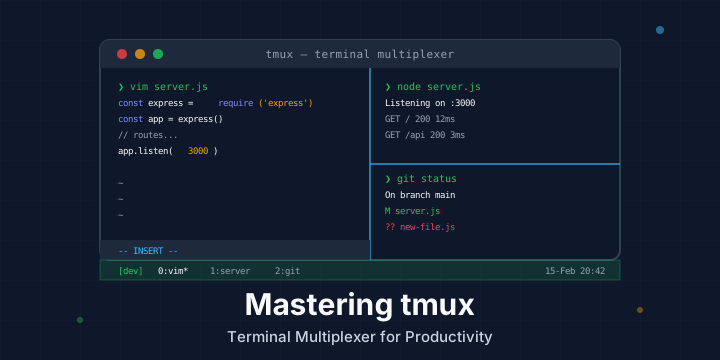
Practical Pane Layout
A common development setup:
- Left pane (wide): code editor (vim/nvim)
- Top-right pane: development server
- Bottom-right pane: git commands or test runner
# Start session
tmux new -s dev

# Split vertically (creates left and right)
# prefix + %

# Move to right pane
# prefix + →

# Split right pane horizontally (creates top-right and bottom-right)
# prefix + "

# Move to left pane to start coding
# prefix + ←
Copy Mode (Scrollback and Text Selection)
By default, you can’t scroll up in tmux with your mouse wheel. You need to enter copy mode:
| Shortcut | Action |
|---|---|
prefix + [ | Enter copy mode |
q | Exit copy mode |
| Arrow keys / PgUp / PgDn | Navigate in copy mode |
Space | Start selection (in copy mode) |
Enter | Copy selection (in copy mode) |
prefix + ] | Paste the copied text |
In copy mode, you can search with / (forward) and ? (backward), just like in vim.
Customizing tmux with .tmux.conf
tmux is highly customizable. Create a ~/.tmux.conf file to set your preferences. Here’s a practical starter config:
# ~/.tmux.conf

# Change prefix from Ctrl+b to Ctrl+a (easier to reach)
unbind C-b
set -g prefix C-a
bind C-a send-prefix

# Split panes with | and -
bind | split-window -h -c "#{pane_current_path}"
bind - split-window -v -c "#{pane_current_path}"
unbind '"'
unbind %

# Enable mouse support (scrolling, pane selection, resizing)
set -g mouse on

# Start window numbering at 1 (not 0)
set -g base-index 1
setw -g pane-base-index 1

# Renumber windows when one is closed
set -g renumber-windows on

# Increase scrollback buffer
set -g history-limit 50000

# Reduce escape time (important for vim users)
set -sg escape-time 10

# Reload config with prefix + r
bind r source-file ~/.tmux.conf \; display "Config reloaded!"

# Switch panes with Alt + arrow (no prefix needed)
bind -n M-Left select-pane -L
bind -n M-Right select-pane -R
bind -n M-Up select-pane -U
bind -n M-Down select-pane -D

# Status bar styling
set -g status-style 'bg=#1e1e2e fg=#cdd6f4'
set -g status-left '#[fg=#89b4fa,bold] [#S] '
set -g status-right '#[fg=#a6adc8] %Y-%m-%d %H:%M '
set -g window-status-current-style 'fg=#a6e3a1,bold'
set -g window-status-style 'fg=#6c7086'

# 256 color support
set -g default-terminal "screen-256color"
set -ag terminal-overrides ",xterm-256color:RGB"
After editing, reload the config:
# From within tmux:
# prefix + : then type:
source-file ~/.tmux.conf

# Or if you added the bind above:
# prefix + r
tmux Plugin Manager (TPM)
TPM lets you install plugins easily. Install it:
git clone https://github.com/tmux-plugins/tpm ~/.tmux/plugins/tpmAdd to your ~/.tmux.conf:
# List of plugins
set -g @plugin 'tmux-plugins/tpm'
set -g @plugin 'tmux-plugins/tmux-sensible'
set -g @plugin 'tmux-plugins/tmux-resurrect'    # Save/restore sessions
set -g @plugin 'tmux-plugins/tmux-continuum'     # Auto-save sessions
set -g @plugin 'tmux-plugins/tmux-yank'          # Better copy/paste

# Initialize TPM (keep this at the bottom)
run '~/.tmux/plugins/tpm/tpm'
Install plugins by pressing prefix + I (capital I) inside tmux.
Notable Plugins
| Plugin | Description |
|---|---|
| tmux-resurrect | Save and restore tmux sessions across reboots |
| tmux-continuum | Automatic saving of sessions every 15 minutes |
| tmux-yank | Copy to system clipboard from tmux |
| tmux-sensible | Universal sensible defaults |
Real-World Workflows
Remote Server Management
# SSH into server and start a tmux session
ssh user@server
tmux new -s deploy

# Run your deployment, tail logs, etc.
# If your connection drops, everything keeps running

# Reconnect later:
ssh user@server
tmux attach -t deploy
Development Environment
Create a shell script to set up your workspace automatically:
#!/bin/bash
# ~/scripts/dev-workspace.sh

SESSION="dev"

# Create session with first window for editor
tmux new-session -d -s $SESSION -n editor

# Open editor in first window
tmux send-keys -t $SESSION:editor 'vim .' C-m

# Create server window
tmux new-window -t $SESSION -n server
tmux send-keys -t $SESSION:server 'npm run dev' C-m

# Create window for git and misc commands
tmux new-window -t $SESSION -n git
tmux send-keys -t $SESSION:git 'git status' C-m

# Select the editor window
tmux select-window -t $SESSION:editor

# Attach to session
tmux attach -t $SESSION
Make it executable and run it:
chmod +x ~/scripts/dev-workspace.sh
~/scripts/dev-workspace.sh
Pair Programming
tmux supports shared sessions. Two users SSH into the same server and attach to the same session:
# User A:
tmux new -s pairing

# User B (same server):
tmux attach -t pairing
Both users see and interact with the same terminal in real time.
Quick Reference Cheat Sheet
Sessions
| Command | Action |
|---|---|
tmux new -s name | New named session |
tmux ls | List sessions |
tmux a -t name | Attach to session |
tmux kill-session -t name | Kill session |
prefix + d | Detach |
prefix + s | Session picker |
Windows
| Command | Action |
|---|---|
prefix + c | New window |
prefix + , | Rename window |
prefix + n / p | Next / previous window |
prefix + 0-9 | Go to window number |
prefix + & | Kill window |
Panes
| Command | Action |
|---|---|
prefix + % | Vertical split |
prefix + " | Horizontal split |
prefix + arrows | Navigate panes |
prefix + x | Kill pane |
prefix + z | Toggle zoom |
prefix + space | Cycle layouts |
Tips and Tricks
- Use named sessions —
tmux new -s project-nameis much easier to manage than unnamed sessions - Enable mouse mode — add
set -g mouse onto your config for scrolling and pane selection with the mouse - Change the prefix to Ctrl+a — it’s easier to reach than Ctrl+b, and matches GNU Screen muscle memory
- Use tmux-resurrect — it saves your session layout across server reboots, which is invaluable
- Zoom panes with prefix + z — temporarily maximize a pane to see more output, then press it again to restore the layout
- New panes inherit the current directory — use
split-window -c "#{pane_current_path}"in your bindings
Conclusion
tmux is one of those tools that takes an hour to learn and saves you hundreds of hours over time. Whether you’re managing remote servers, running a multi-service development environment, or just want a better terminal workflow, tmux delivers. Start with the basics — sessions, windows, and panes — then gradually customize it to fit your workflow with a .tmux.conf and plugins.
For more, check the official tmux Wiki and the tmux man page.