Traefik Reverse Proxy: Automatic HTTPS for Docker Services
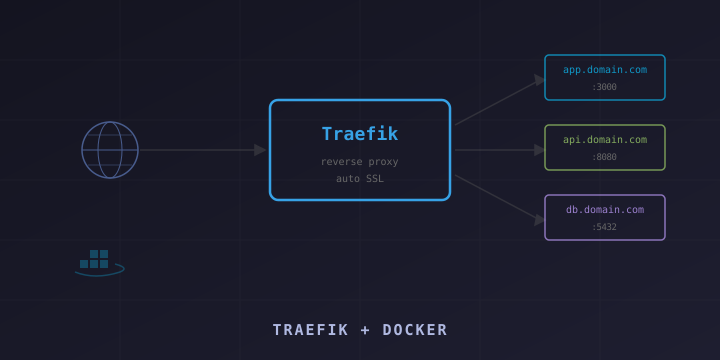
If you run multiple Docker containers on a server — a web app, an API, a dashboard — you need a reverse proxy to route traffic to each service based on the domain name. Traefik is purpose-built for this. It integrates directly with Docker, automatically discovers new containers, and provisions SSL certificates from Let’s Encrypt without any manual configuration.
While Nginx is a solid reverse proxy, it requires manual configuration files for each service. Traefik reads Docker labels and configures routing automatically — add a container, add a label, and it’s live with HTTPS.
Why Traefik?
- Docker-native: Discovers services automatically by watching the Docker socket
- Automatic HTTPS: Provisions and renews Let’s Encrypt certificates automatically
- Dynamic configuration: No restart needed when adding or removing services
- Built-in dashboard: Real-time view of routes, services, and middleware
- Load balancing: Built-in round-robin, weighted, and sticky session load balancing
- Middleware: Add authentication, rate limiting, headers, redirects, and more
Official site: https://traefik.io
Documentation: https://doc.traefik.io/traefik/
Prerequisites
- A Linux server with Docker and Docker Compose installed
- A domain name with DNS A records pointing to your server’s IP
- Ports 80 and 443 open on your firewall
Project Structure
traefik/
├── docker-compose.yml
├── traefik.yml
└── acme.json          # Created automatically for SSL certificates
Setting Up Traefik
Step 1: Create the Docker Network
Create a shared Docker network that Traefik and your services will use:
docker network create proxyStep 2: Create the Traefik Configuration
Create traefik.yml:
# Traefik static configuration
api:
  dashboard: true
  insecure: false

entryPoints:
  web:
    address: ":80"
    http:
      redirections:
        entryPoint:
          to: websecure
          scheme: https
  websecure:
    address: ":443"

providers:
  docker:
    endpoint: "unix:///var/run/docker.sock"
    exposedByDefault: false
    network: proxy

certificatesResolvers:
  letsencrypt:
    acme:
      email: your-email@example.com
      storage: /acme.json
      httpChallenge:
        entryPoint: web
Key settings:
- entryPoints: Define HTTP (80) and HTTPS (443) listeners
- HTTP to HTTPS redirect: All HTTP traffic is automatically redirected to HTTPS
- Docker provider: Watches the Docker socket for container changes
- exposedByDefault: false: Only containers with explicit labels are exposed
- Let’s Encrypt: Automatic SSL using the HTTP-01 challenge
Step 3: Create the SSL Certificate Storage
touch acme.json
chmod 600 acme.json
The 600 permission is required — Let’s Encrypt certificates contain private keys.
Step 4: Create the Docker Compose File
Create docker-compose.yml:
version: "3.8"

services:
  traefik:
    image: traefik:v3.0
    container_name: traefik
    restart: unless-stopped
    ports:
      - "80:80"
      - "443:443"
    volumes:
      - /var/run/docker.sock:/var/run/docker.sock:ro
      - ./traefik.yml:/traefik.yml:ro
      - ./acme.json:/acme.json
    networks:
      - proxy
    labels:
      # Dashboard
      - "traefik.enable=true"
      - "traefik.http.routers.dashboard.rule=Host(`traefik.yourdomain.com`)"
      - "traefik.http.routers.dashboard.entrypoints=websecure"
      - "traefik.http.routers.dashboard.tls.certresolver=letsencrypt"
      - "traefik.http.routers.dashboard.service=api@internal"
      # Basic auth for dashboard
      - "traefik.http.routers.dashboard.middlewares=auth"
      - "traefik.http.middlewares.auth.basicauth.users=admin:$$apr1$$xyz$$hashedpassword"

networks:
  proxy:
    external: true
Generate the password hash for basic auth:
# Install htpasswd (apache2-utils)
sudo apt install apache2-utils

# Generate password hash
htpasswd -nb admin your-secure-password
# Output: admin:$apr1$xyz$hashedpassword

# Important: In docker-compose.yml, double all $ signs ($ becomes $$)
Step 5: Start Traefik
docker compose up -dTraefik is now running and watching for Docker containers.
Adding Services
The beauty of Traefik is that you add routing through Docker labels on your service containers. No Traefik configuration changes needed.
Example: A Web Application
Create a docker-compose.yml for your app in a separate directory:
version: "3.8"

services:
  webapp:
    image: nginx:alpine
    container_name: webapp
    restart: unless-stopped
    networks:
      - proxy
    labels:
      - "traefik.enable=true"
      - "traefik.http.routers.webapp.rule=Host(`app.yourdomain.com`)"
      - "traefik.http.routers.webapp.entrypoints=websecure"
      - "traefik.http.routers.webapp.tls.certresolver=letsencrypt"
      - "traefik.http.services.webapp.loadbalancer.server.port=80"

networks:
  proxy:
    external: true
Start it:
docker compose up -dWithin seconds, https://app.yourdomain.com is live with a valid SSL certificate. No Traefik restart needed.
Example: API Service
version: "3.8"

services:
  api:
    image: node:20-alpine
    container_name: api
    working_dir: /app
    volumes:
      - ./:/app
    command: node server.js
    restart: unless-stopped
    networks:
      - proxy
    labels:
      - "traefik.enable=true"
      - "traefik.http.routers.api.rule=Host(`api.yourdomain.com`)"
      - "traefik.http.routers.api.entrypoints=websecure"
      - "traefik.http.routers.api.tls.certresolver=letsencrypt"
      - "traefik.http.services.api.loadbalancer.server.port=3000"

networks:
  proxy:
    external: true
Example: Multiple Services in One Compose File
version: "3.8"

services:
  frontend:
    image: nginx:alpine
    networks:
      - proxy
    labels:
      - "traefik.enable=true"
      - "traefik.http.routers.frontend.rule=Host(`yourdomain.com`)"
      - "traefik.http.routers.frontend.entrypoints=websecure"
      - "traefik.http.routers.frontend.tls.certresolver=letsencrypt"
      - "traefik.http.services.frontend.loadbalancer.server.port=80"

  backend:
    image: node:20-alpine
    networks:
      - proxy
    labels:
      - "traefik.enable=true"
      - "traefik.http.routers.backend.rule=Host(`yourdomain.com`) && PathPrefix(`/api`)"
      - "traefik.http.routers.backend.entrypoints=websecure"
      - "traefik.http.routers.backend.tls.certresolver=letsencrypt"
      - "traefik.http.services.backend.loadbalancer.server.port=3000"

networks:
  proxy:
    external: true
Middleware
Traefik middleware processes requests between the router and the service. Add middleware through Docker labels.
Rate Limiting
labels:
  - "traefik.http.middlewares.ratelimit.ratelimit.average=100"
  - "traefik.http.middlewares.ratelimit.ratelimit.burst=50"
  - "traefik.http.routers.myapp.middlewares=ratelimit"
Custom Headers
labels:
  - "traefik.http.middlewares.security-headers.headers.stsSeconds=31536000"
  - "traefik.http.middlewares.security-headers.headers.stsIncludeSubdomains=true"
  - "traefik.http.middlewares.security-headers.headers.contentTypeNosniff=true"
  - "traefik.http.middlewares.security-headers.headers.frameDeny=true"
  - "traefik.http.routers.myapp.middlewares=security-headers"
IP Whitelist
labels:
  - "traefik.http.middlewares.ipwhitelist.ipwhitelist.sourcerange=192.168.1.0/24,10.0.0.0/8"
  - "traefik.http.routers.myapp.middlewares=ipwhitelist"
Chaining Multiple Middleware
labels:
  - "traefik.http.routers.myapp.middlewares=ratelimit,security-headers,auth"
Wildcard SSL Certificates
For wildcard certificates (*.yourdomain.com), use the DNS-01 challenge instead of HTTP-01. Example with Cloudflare:
# traefik.yml
certificatesResolvers:
  letsencrypt:
    acme:
      email: your-email@example.com
      storage: /acme.json
      dnsChallenge:
        provider: cloudflare
        resolvers:
          - "1.1.1.1:53"
          - "8.8.8.8:53"
Add your Cloudflare API token as an environment variable in Traefik’s compose file:
environment:
  - CF_API_EMAIL=your@email.com
  - CF_DNS_API_TOKEN=your-cloudflare-api-token
Traefik vs Nginx
| Feature | Traefik | Nginx |
|---|---|---|
| Docker integration | Native (auto-discovery) | Manual config per service |
| SSL certificates | Automatic (Let’s Encrypt built-in) | Manual (Certbot) |
| Config changes | Dynamic (no restart) | Requires reload |
| Dashboard | Built-in | Third-party tools |
| Learning curve | Labels-based | Config file-based |
| Performance | Very good | Excellent |
| Ecosystem | Growing | Massive |
Use Traefik if you run Docker containers and want automatic service discovery. Use Nginx if you need maximum performance or aren’t using Docker.
Useful Commands
# View Traefik logs
docker logs traefik -f

# Check running containers and their labels
docker inspect <container> | jq '.[0].Config.Labels'

# Verify SSL certificate
curl -vI https://app.yourdomain.com 2>&1 | grep -i "subject\|expire"

# Check Traefik health
curl http://localhost:8080/api/overview
Summary
Traefik turns Docker service management from a chore into something automatic. Add a container with the right labels, and it gets a domain, SSL certificate, and routing — all without touching a config file or restarting anything.
Key resources:
- Documentation: https://doc.traefik.io/traefik/
- GitHub: https://github.com/traefik/traefik
- Docker Hub: https://hub.docker.com/_/traefik
If you’re running multiple services on Docker, Traefik is the smartest way to handle routing and SSL.