UFW Firewall Guide: Secure Your Linux Server in Minutes
If you’re running a Linux server — whether it’s a VPS, a Raspberry Pi, or a cloud instance — a firewall is one of the first things you should set up. UFW (Uncomplicated Firewall) is the default firewall management tool on Ubuntu and Debian-based systems. It provides a simple, human-readable interface on top of the powerful iptables framework, letting you lock down your server in minutes instead of hours.
This guide covers everything from installation to advanced rules, giving you a production-ready firewall configuration.
Why You Need a Firewall
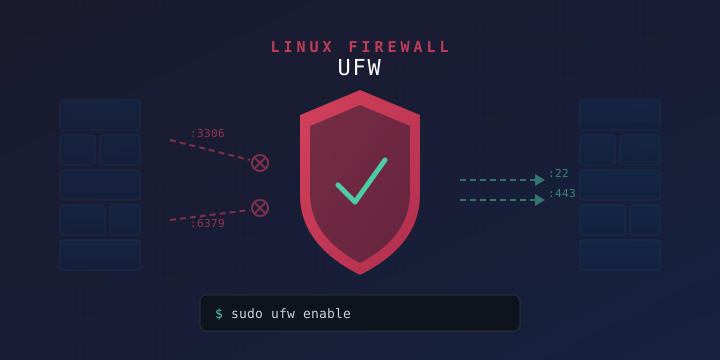
Every server connected to the internet is constantly being probed. Automated bots scan IP ranges looking for open ports — SSH on port 22, databases on 3306 or 5432, Redis on 6379, and more. Without a firewall, every listening service on your server is exposed to the world.
A firewall lets you:
- Block all incoming traffic by default and only allow what you explicitly need
- Rate-limit brute force attacks on SSH and other services
- Restrict access to internal services like databases to specific IPs
- Log suspicious connection attempts for monitoring and auditing
UFW makes all of this straightforward with simple commands.
Installing UFW
UFW comes pre-installed on Ubuntu. On Debian and other distributions, install it with:
sudo apt update
sudo apt install ufw
Verify the installation:
sudo ufw versionYou should see output like ufw 0.36.2 or similar. At this point, UFW is installed but not active — no rules are being enforced yet.
Understanding Default Policies
Before enabling UFW, you need to understand default policies. These determine what happens to traffic that doesn’t match any specific rule.
The recommended setup for a server:
sudo ufw default deny incoming
sudo ufw default allow outgoing
This means:
- Incoming traffic: Blocked unless you create a rule to allow it
- Outgoing traffic: Allowed (your server can reach the internet for updates, API calls, etc.)
This is a “deny by default” approach — the most secure starting point.
CRITICAL: Allow SSH Before Enabling
This is the most important step. If you enable UFW without allowing SSH first, you’ll lock yourself out of your server immediately. If you’re connected via SSH (which you almost certainly are on a remote server), run this first:
sudo ufw allow sshThis is equivalent to:
sudo ufw allow 22/tcpIf you’ve changed your SSH port to something else (e.g., 2222), allow that instead:
sudo ufw allow 2222/tcpEnabling UFW
Once your SSH rule is in place, enable the firewall:
sudo ufw enableYou’ll see a warning: Command may disrupt existing ssh connections. Proceed with operation (y|n)? — type y and press Enter. Your existing SSH session will remain active.
Check the status:
sudo ufw status verboseOutput:
Status: active
Logging: on (low)
Default: deny (incoming), allow (outgoing), disabled (routed)
New profiles: skip

To                         Action      From
--                         ------      ----
22/tcp                     ALLOW IN    Anywhere
22/tcp (v6)                ALLOW IN    Anywhere (v6)
Your firewall is now active and protecting your server.
Common Rules for Web Servers
Allow HTTP and HTTPS
If you’re running a web server (Nginx, Apache, Caddy), you need ports 80 and 443:
sudo ufw allow 80/tcp
sudo ufw allow 443/tcp
Or allow both at once using a port range:
sudo ufw allow 80,443/tcpAllow a Specific Port
For any custom service, specify the port and protocol:
sudo ufw allow 8080/tcp
sudo ufw allow 51820/udp   # WireGuard VPN
Allow a Port Range
Some applications use a range of ports:
sudo ufw allow 6000:6007/tcpAllow Traffic from a Specific IP
Restrict a port to only accept connections from a trusted IP address. This is essential for databases and admin panels:
# Only allow your office IP to connect to MySQL
sudo ufw allow from 203.0.113.50 to any port 3306

# Only allow your home IP to SSH in
sudo ufw allow from 198.51.100.25 to any port 22
Allow an Entire Subnet
Useful for local networks or VPN subnets:
sudo ufw allow from 10.8.0.0/24
sudo ufw allow from 192.168.1.0/24 to any port 22
Denying Traffic
While the default policy already denies incoming traffic, you might want explicit deny rules — for example, to block a specific IP:
# Block a specific IP entirely
sudo ufw deny from 23.94.168.100

# Block a specific IP from a specific port
sudo ufw deny from 23.94.168.100 to any port 22
To block an entire subnet:
sudo ufw deny from 103.25.0.0/16Rate Limiting SSH
One of UFW’s best features is built-in rate limiting. This automatically blocks IP addresses that attempt too many connections in a short period — ideal for stopping SSH brute force attacks:
sudo ufw limit sshThis replaces your existing allow ssh rule. It allows a maximum of 6 connections within 30 seconds from a single IP. After that, further connections are blocked temporarily.
Check it’s applied:
sudo ufw statusTo Action From
-- ------ ----
22/tcp LIMIT Anywhere
22/tcp (v6) LIMIT Anywhere (v6)This is far simpler than setting up fail2ban for basic protection (though fail2ban is still excellent for more advanced scenarios).
Using Application Profiles
UFW supports application profiles — predefined rule sets for common software. List available profiles:
sudo ufw app listCommon output:
Available applications:
  Nginx Full
  Nginx HTTP
  Nginx HTTPS
  OpenSSH
Use a profile instead of remembering port numbers:
sudo ufw allow 'Nginx Full'
sudo ufw allow 'OpenSSH'
View what a profile includes:
sudo ufw app info 'Nginx Full'Profile: Nginx Full
Title: Web Server (Nginx, HTTP + HTTPS)
Description: Small, but very powerful and efficient web server
Ports:
80,443/tcpApplications install their own profiles in /etc/ufw/applications.d/. You can create custom profiles for your own services too.
Deleting Rules
Delete by Rule
Remove a specific rule by repeating the command with delete:
sudo ufw delete allow 8080/tcp
sudo ufw delete deny from 23.94.168.100
Delete by Number
List rules with numbers:
sudo ufw status numberedStatus: active
To Action From
-- ------ ----
[ 1] 22/tcp LIMIT Anywhere
[ 2] 80,443/tcp ALLOW Anywhere
[ 3] 22/tcp (v6) LIMIT Anywhere (v6)
[ 4] 80,443/tcp (v6) ALLOW Anywhere (v6)Delete by number:
sudo ufw delete 2Note: After deleting a rule, the numbers shift. Always re-check ufw status numbered before deleting another rule by number.
Checking Firewall Logs
UFW can log blocked and allowed connections. Set the logging level:
sudo ufw logging on        # Default: low
sudo ufw logging medium    # More detail
sudo ufw logging high      # Full verbosity
Logs are written to /var/log/ufw.log. View recent blocked connections:
sudo grep '\[UFW BLOCK\]' /var/log/ufw.log | tail -20A typical blocked entry looks like:
Feb 15 14:23:01 server kernel: [UFW BLOCK] IN=eth0 OUT= MAC=... SRC=185.220.101.34 DST=10.0.0.5 ... DPT=3389 ...This shows someone tried to connect to port 3389 (RDP) from IP 185.220.101.34 and was blocked.
Resetting UFW
If your rules get messy and you want to start over:
sudo ufw resetThis disables UFW and deletes all rules. You’ll need to set default policies and re-add your rules from scratch. Be especially careful on remote servers — make sure you have console access (not just SSH) before resetting.
A Complete Server Setup Example
Here’s a real-world example for a typical web server running Nginx with a PostgreSQL database, SSH on a custom port, and WireGuard VPN:
# Set default policies
sudo ufw default deny incoming
sudo ufw default allow outgoing

# Allow SSH on custom port with rate limiting
sudo ufw limit 2222/tcp comment 'SSH rate limited'

# Allow web traffic
sudo ufw allow 80/tcp comment 'HTTP'
sudo ufw allow 443/tcp comment 'HTTPS'

# Allow WireGuard VPN
sudo ufw allow 51820/udp comment 'WireGuard'

# Allow PostgreSQL only from VPN subnet
sudo ufw allow from 10.8.0.0/24 to any port 5432 comment 'PostgreSQL via VPN'

# Allow Redis only from localhost
sudo ufw allow from 127.0.0.1 to any port 6379 comment 'Redis local only'

# Enable the firewall
sudo ufw enable

# Verify
sudo ufw status verbose
This gives you:
- SSH protected with rate limiting on a non-standard port
- Web ports open for public traffic
- WireGuard accessible for VPN clients
- PostgreSQL only reachable through the VPN tunnel
- Redis only accessible from the server itself
- Everything else blocked
UFW with Docker — An Important Caveat
If you’re running Docker, be aware that Docker modifies iptables directly and bypasses UFW entirely. This means a container exposing port 3306 will be accessible from the internet even if UFW blocks that port.
To fix this, edit /etc/docker/daemon.json:
{
  "iptables": false
}
Then restart Docker:
sudo systemctl restart dockerWith "iptables": false, Docker won’t create its own iptables rules, and UFW will properly control access. However, you’ll need to manually set up routing for container networking. For most setups, using Docker’s --network host mode or binding to 127.0.0.1 is a simpler solution:
# Bind container ports to localhost only
docker run -p 127.0.0.1:3306:3306 mysql:8
This ensures the MySQL container is only accessible from the server itself, and you can use Nginx or a reverse proxy to expose what you need.
Disabling and Re-enabling
Temporarily disable UFW without removing rules:
sudo ufw disableRe-enable with all rules intact:
sudo ufw enableQuick Reference
| Command | Description |
|---|---|
sudo ufw enable | Activate the firewall |
sudo ufw disable | Deactivate (rules preserved) |
sudo ufw status verbose | Show all rules and policies |
sudo ufw status numbered | Show rules with numbers |
sudo ufw allow 80/tcp | Allow port 80 TCP |
sudo ufw deny from IP | Block a specific IP |
sudo ufw limit ssh | Rate limit SSH |
sudo ufw delete allow 80/tcp | Remove a rule |
sudo ufw reset | Remove all rules and disable |
sudo ufw logging on | Enable logging |
sudo ufw app list | List application profiles |
Wrapping Up
UFW turns Linux firewall management from a complex iptables exercise into something you can configure in under five minutes. The key principles are simple:
- Deny everything by default
- Allow only what you need
- Rate limit SSH
- Restrict databases to trusted IPs or localhost
- Check your rules after setup
Combined with SSH key authentication (covered in our SSH key guide) and regular system updates, UFW gives your server a solid security foundation. If you’re running Docker, remember the iptables caveat and bind container ports to localhost when possible.
Your server doesn’t need to be an open door. A few ufw commands is all it takes to close it.