Supercharge Your Terminal with Zsh and Oh My Zsh
If you spend any time in the terminal, your shell matters. Bash is the default on most Linux distros, but Zsh (Z Shell) combined with Oh My Zsh gives you autocompletion, syntax highlighting, git integration, and hundreds of plugins that make the command line genuinely enjoyable to use.
macOS has shipped with Zsh as the default shell since Catalina (10.15). On Linux, switching takes one command. This guide covers everything from installation to a fully customized, productive Zsh setup.
Why Switch to Zsh?
Zsh is mostly compatible with Bash but adds features that make daily terminal use faster:
- Smarter tab completion: Zsh completes commands, flags, file paths, hostnames, and even git branches with context-aware suggestions
- Spelling correction: Typo in a command? Zsh asks if you meant the right one
- Glob patterns: Advanced wildcards like
**/*.jswork natively for recursive file matching - Shared history: History is shared across all open terminal sessions
- Right-side prompt: Display information (git branch, time, etc.) on the right side of the terminal
- Plugin ecosystem: Oh My Zsh provides 300+ plugins and 150+ themes out of the box
Installing Zsh
macOS
Zsh is already the default shell on macOS Catalina and newer. Verify with:
echo $SHELL
# /bin/zsh
If you’re still on Bash, switch to Zsh:
chsh -s /bin/zshUbuntu / Debian
sudo apt update && sudo apt install zsh -yFedora / RHEL
sudo dnf install zsh -yArch Linux
sudo pacman -S zshAfter installing, set Zsh as your default shell:
chsh -s $(which zsh)Log out and log back in for the change to take effect. Verify:
echo $SHELL
# /usr/bin/zsh (or /bin/zsh)
Installing Oh My Zsh
Oh My Zsh is an open-source framework for managing your Zsh configuration. It bundles themes, plugins, and helper functions into a simple package.
Install it with a single command:
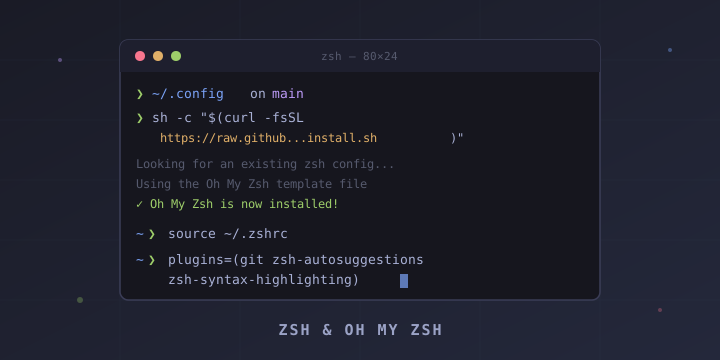
sh -c "$(curl -fsSL https://raw.githubusercontent.com/ohmyzsh/ohmyzsh/master/tools/install.sh)"Or with wget:
sh -c "$(wget https://raw.githubusercontent.com/ohmyzsh/ohmyzsh/master/tools/install.sh -O -)"This creates:
~/.oh-my-zsh/— the Oh My Zsh installation directory~/.zshrc— your Zsh configuration file (backed up if one already exists)
The Oh My Zsh GitHub repository: https://github.com/ohmyzsh/ohmyzsh
Choosing a Theme
Oh My Zsh ships with over 150 themes. The theme is set in ~/.zshrc:
nano ~/.zshrcFind the ZSH_THEME line and change it:
ZSH_THEME="robbyrussell" # default themePopular Built-in Themes
- robbyrussell — Clean, minimal, shows git branch (the default)
- agnoster — Powerline-style with segments for user, directory, git status
- fino — Lightweight with directory and git info
- bira — Two-line prompt with user@host and git branch
- clean — Minimal, just the essentials
Preview all themes at: https://github.com/ohmyzsh/ohmyzsh/wiki/Themes
To try a theme temporarily without editing the file:
source ~/.oh-my-zsh/themes/agnoster.zsh-themePowerlevel10k — The Most Popular External Theme
Powerlevel10k is the most widely used Zsh theme. It’s extremely fast, highly configurable, and includes a setup wizard.
Install it:
git clone --depth=1 https://github.com/romkatv/powerlevel10k.git \
  ${ZSH_CUSTOM:-$HOME/.oh-my-zsh/custom}/themes/powerlevel10k
Set it in ~/.zshrc:
ZSH_THEME="powerlevel10k/powerlevel10k"Restart your terminal, and the Powerlevel10k configuration wizard will launch automatically. It walks you through choosing prompt style, icons, colors, and layout.
To re-run the wizard later:
p10k configureNote: For the best experience with Powerlevel10k (and agnoster), install a Nerd Font like “MesloLGS NF” and set it as your terminal font. The Powerlevel10k wizard will prompt you to install it.
Essential Plugins
Plugins are the real power of Oh My Zsh. Edit ~/.zshrc and add plugins to the plugins array:
plugins=(
  git
  zsh-autosuggestions
  zsh-syntax-highlighting
  z
  docker
  kubectl
  history
  sudo
)
After editing, reload:
source ~/.zshrcBuilt-in Plugins (No Installation Needed)
These come bundled with Oh My Zsh:
git — Adds 150+ git aliases (gst = git status, gco = git checkout, gp = git push, etc.). See all aliases with alias | grep git.
z — Jump to frequently visited directories by typing partial names. After visiting /home/user/projects/myapp a few times, just type z myapp.
sudo — Press Esc twice to prepend sudo to the current or previous command. Forgot sudo? Double-tap Escape.
history — Adds the h alias for history and hsi for searching history with grep.
docker — Autocompletion for Docker commands, container names, and image names.
kubectl — Autocompletion and aliases for Kubernetes kubectl commands.
extract — Universal extract command that handles .tar.gz, .zip, .rar, .7z, and more without remembering flags.
web-search — Search Google, DuckDuckGo, or Stack Overflow from the terminal: google "zsh plugins".
copypath — Copy the current directory path to clipboard with copypath.
copybuffer — Copy the current command line to clipboard with Ctrl+O.
Third-Party Plugins (Must Install)
These are the two most popular third-party plugins:
zsh-autosuggestions
Suggests commands as you type based on your history. The suggestion appears in grey — press → (right arrow) to accept it.
git clone https://github.com/zsh-users/zsh-autosuggestions \
  ${ZSH_CUSTOM:-~/.oh-my-zsh/custom}/plugins/zsh-autosuggestions
zsh-syntax-highlighting
Highlights valid commands in green and invalid ones in red as you type — before you hit Enter.
git clone https://github.com/zsh-users/zsh-syntax-highlighting.git \
  ${ZSH_CUSTOM:-~/.oh-my-zsh/custom}/plugins/zsh-syntax-highlighting
After cloning both, add them to your plugins array in ~/.zshrc and reload with source ~/.zshrc.
Custom Aliases and Functions
Add your own aliases at the bottom of ~/.zshrc or in a separate file like ~/.zsh_aliases:
# Navigation shortcuts
alias ..="cd .."
alias ...="cd ../.."
alias ll="ls -lah"
alias la="ls -la"

# Git shortcuts
alias gs="git status"
alias gc="git commit -m"
alias gd="git diff"
alias gl="git log --oneline --graph --decorate -20"

# Safety nets
alias rm="rm -i"
alias cp="cp -i"
alias mv="mv -i"

# Quick edit config
alias zshconfig="nano ~/.zshrc"
alias reload="source ~/.zshrc"

# System
alias ports="sudo lsof -i -P -n | grep LISTEN"
alias myip="curl -s ifconfig.me"
alias weather="curl wttr.in"
For more complex operations, use Zsh functions:
# Create directory and cd into it
mkcd() {
  mkdir -p "$1" && cd "$1"
}

# Quick find files
ff() {
  find . -type f -name "*$1*"
}

# Extract any archive
ex() {
  if [ -f "$1" ]; then
    case "$1" in
      *.tar.bz2) tar xjf "$1" ;;
      *.tar.gz)  tar xzf "$1" ;;
      *.tar.xz)  tar xJf "$1" ;;
      *.bz2)     bunzip2 "$1" ;;
      *.gz)      gunzip "$1" ;;
      *.tar)     tar xf "$1" ;;
      *.zip)     unzip "$1" ;;
      *.7z)      7z x "$1" ;;
      *)         echo "'$1' cannot be extracted" ;;
    esac
  else
    echo "'$1' is not a valid file"
  fi
}
Useful Zsh Options
Add these to ~/.zshrc for better defaults:
# Case-insensitive tab completion
zstyle ':completion:*' matcher-list 'm:{a-z}={A-Z}'

# Auto-correct commands
setopt CORRECT
setopt CORRECT_ALL

# Share history across sessions in real time
setopt SHARE_HISTORY
setopt APPEND_HISTORY
setopt INC_APPEND_HISTORY

# Remove duplicate history entries
setopt HIST_IGNORE_DUPS
setopt HIST_IGNORE_ALL_DUPS
setopt HIST_FIND_NO_DUPS

# Larger history
HISTSIZE=50000
SAVEHIST=50000
HISTFILE=~/.zsh_history

# Auto cd — just type a directory name without cd
setopt AUTO_CD

# Use extended globbing
setopt EXTENDED_GLOB
Key Bindings and Navigation Tips
Zsh supports powerful keyboard shortcuts:
| Shortcut | Action |
|---|---|
Ctrl+R | Reverse search through history |
Ctrl+A | Jump to beginning of line |
Ctrl+E | Jump to end of line |
Ctrl+U | Delete from cursor to beginning of line |
Ctrl+K | Delete from cursor to end of line |
Ctrl+W | Delete word before cursor |
Alt+B | Move back one word |
Alt+F | Move forward one word |
Esc, Esc | Prepend sudo (with sudo plugin) |
→ | Accept autosuggestion |
Tab | Cycle through completions |
Updating and Managing Oh My Zsh
Update Oh My Zsh to get new plugins and bug fixes:
omz updateOr set automatic updates in ~/.zshrc:
zstyle ':omz:update' mode auto
zstyle ':omz:update' frequency 14  # days
To uninstall Oh My Zsh (reverts to your previous shell config):
uninstall_oh_my_zshComplete Example .zshrc
Here’s a practical ~/.zshrc you can use as a starting point:
# Path to Oh My Zsh installation
export ZSH="$HOME/.oh-my-zsh"

# Theme
ZSH_THEME="powerlevel10k/powerlevel10k"

# Plugins
plugins=(
  git
  z
  sudo
  history
  extract
  zsh-autosuggestions
  zsh-syntax-highlighting
)

source $ZSH/oh-my-zsh.sh

# History settings
HISTSIZE=50000
SAVEHIST=50000
setopt SHARE_HISTORY
setopt HIST_IGNORE_DUPS

# Aliases
alias ll="ls -lah"
alias gs="git status"
alias gc="git commit -m"
alias reload="source ~/.zshrc"
alias myip="curl -s ifconfig.me"

# Functions
mkcd() { mkdir -p "$1" && cd "$1"; }

# Powerlevel10k config (if using p10k)
[[ -f ~/.p10k.zsh ]] && source ~/.p10k.zsh
Summary
Switching from Bash to Zsh with Oh My Zsh is one of the highest-impact productivity improvements you can make as a developer or sysadmin. The combination of autosuggestions, syntax highlighting, smart completions, and git-aware prompts saves time on every single terminal interaction.
Key resources:
- Oh My Zsh: https://ohmyz.sh/
- Oh My Zsh GitHub: https://github.com/ohmyzsh/ohmyzsh
- Powerlevel10k: https://github.com/romkatv/powerlevel10k
- zsh-autosuggestions: https://github.com/zsh-users/zsh-autosuggestions
- zsh-syntax-highlighting: https://github.com/zsh-users/zsh-syntax-highlighting
- Nerd Fonts: https://www.nerdfonts.com/
Install it once, spend 15 minutes configuring, and enjoy a better terminal for years.