Setting Up a Home Media Server with Jellyfin
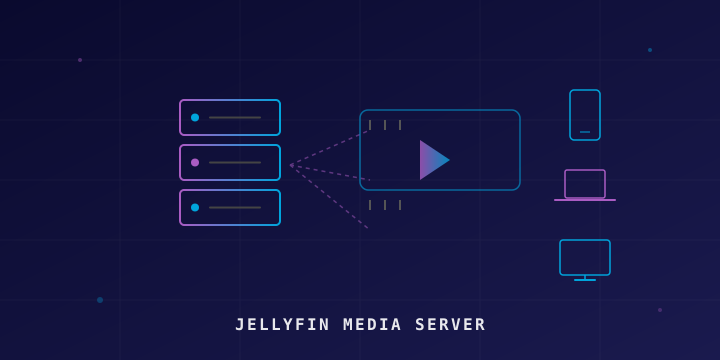
If you’ve been looking for a way to stream your personal movie, TV show, and music collection from anywhere — without paying subscription fees or handing your data to a corporation — Jellyfin is the answer. It’s a free, open-source media server that lets you organize and stream your media library to any device.
In this guide, we’ll walk through setting up Jellyfin using Docker, configuring your media libraries, enabling remote access, and getting client apps running on your devices.
Why Jellyfin?
There are several media server options out there — Plex, Emby, and Jellyfin being the most popular. Here’s why Jellyfin stands out:
- 100% Free and Open Source: No premium tiers, no paywalls. Every feature is free.
- No Account Required: Unlike Plex, you don’t need to create an account on a third-party server.
- Self-Hosted: Your data stays on your hardware. No telemetry, no tracking.
- Active Community: Jellyfin has an active development community on GitHub and a helpful forum.
Plex locks features like hardware transcoding and offline sync behind a paid “Plex Pass.” Emby moved to a closed-source model. Jellyfin forked from Emby in 2018 specifically to remain open-source forever.
Prerequisites
Before we start, you’ll need:
- A computer or server running Linux (Ubuntu/Debian recommended), though Windows and macOS also work
- Docker and Docker Compose installed (see our Docker guide)
- Your media files organized in folders (e.g.,
/media/movies,/media/tvshows,/media/music) - At least 2 GB of RAM (4 GB+ recommended for transcoding)
Installing Jellyfin with Docker
Docker is the easiest and cleanest way to run Jellyfin. It keeps everything contained and makes updates straightforward.
Step 1: Create the Directory Structure
mkdir -p /opt/jellyfin/config
mkdir -p /opt/jellyfin/cache
Step 2: Create a Docker Compose File
Create a docker-compose.yml file:
nano /opt/jellyfin/docker-compose.ymlPaste the following configuration:
version: "3.8"

services:
  jellyfin:
    image: jellyfin/jellyfin:latest
    container_name: jellyfin
    restart: unless-stopped
    ports:
      - "8096:8096"    # HTTP web UI
      - "8920:8920"    # HTTPS web UI (optional)
      - "7359:7359/udp" # Client discovery on local network
      - "1900:1900/udp" # DLNA discovery (optional)
    volumes:
      - /opt/jellyfin/config:/config
      - /opt/jellyfin/cache:/cache
      - /media/movies:/data/movies:ro
      - /media/tvshows:/data/tvshows:ro
      - /media/music:/data/music:ro
    environment:
      - JELLYFIN_PublishedServerUrl=http://your-server-ip:8096
Adjust the volume paths under /media/ to match where your media files are stored. The :ro flag mounts them as read-only, which is a good security practice.
Step 3: Start Jellyfin
cd /opt/jellyfin
docker compose up -d
Jellyfin will pull the latest image and start running. You can verify it’s up with:
docker psYou should see the jellyfin container running and healthy.
Initial Setup Wizard
Open your browser and navigate to:
http://your-server-ip:8096You’ll be greeted by the Jellyfin setup wizard:
- Select Language: Choose your preferred language.
- Create Admin Account: Set a username and strong password. This is your admin account.
- Add Media Libraries: Click “Add Media Library” and configure each one:
- Content Type: Select “Movies,” “Shows,” or “Music”
- Folders: Click the
+and browse to/data/movies,/data/tvshows, or/data/music(these are the paths inside the container) - Metadata: Leave the default metadata providers enabled (TheMovieDb, TheTVDB, etc.)
- Configure Remote Access: Enable “Allow remote connections” if you want to stream outside your home network.
- Finish: Complete the wizard and log in.
Organizing Your Media Files
Jellyfin relies heavily on proper file naming to fetch correct metadata. Follow these naming conventions:
Movies
/media/movies/
  Movie Name (Year)/
    Movie Name (Year).mkv
Example:
/media/movies/
  Inception (2010)/
    Inception (2010).mkv
  The Matrix (1999)/
    The Matrix (1999).mkv
TV Shows
/media/tvshows/
  Show Name (Year)/
    Season 01/
      Show Name S01E01.mkv
      Show Name S01E02.mkv
    Season 02/
      Show Name S02E01.mkv
Example:
/media/tvshows/
  Breaking Bad (2008)/
    Season 01/
      Breaking Bad S01E01.mkv
      Breaking Bad S01E02.mkv
Music
/media/music/
  Artist Name/
    Album Name (Year)/
      01 - Track Name.flac
      02 - Track Name.flac
After adding your files, go to Dashboard → Libraries and click Scan All Libraries to have Jellyfin pick up the new content and download metadata.
Enabling Hardware Transcoding
Transcoding converts media files on-the-fly to a format your client device can play. Without hardware acceleration, this is CPU-intensive. If your server has an Intel CPU with Quick Sync, an NVIDIA GPU, or an AMD GPU, you can offload this work.
Intel Quick Sync (VA-API)
Add the device to your Docker Compose file:
services:
  jellyfin:
    # ... existing config ...
    devices:
      - /dev/dri:/dev/dri
Then restart:
docker compose down && docker compose up -dIn Jellyfin, go to Dashboard → Playback → Transcoding and:
- Set Hardware acceleration to
Video Acceleration API (VA-API) - Set VA-API Device to
/dev/dri/renderD128 - Enable the codecs your hardware supports (H.264, HEVC, etc.)
- Click Save
NVIDIA GPU
For NVIDIA GPUs, you’ll need the NVIDIA Container Toolkit installed. Then update your compose file:
services:
  jellyfin:
    # ... existing config ...
    runtime: nvidia
    environment:
      - NVIDIA_VISIBLE_DEVICES=all
      - NVIDIA_DRIVER_CAPABILITIES=all
In Jellyfin’s transcoding settings, select Nvidia NVENC as the hardware acceleration method.
Setting Up Remote Access
To access Jellyfin from outside your home network, you have several options:
Option 1: Reverse Proxy with Nginx
If you’re already running Nginx (see our reverse proxy guide), add a server block:
server {
    listen 80;
    server_name jellyfin.yourdomain.com;

    location / {
        proxy_pass http://127.0.0.1:8096;
        proxy_set_header Host $host;
        proxy_set_header X-Real-IP $remote_addr;
        proxy_set_header X-Forwarded-For $proxy_add_x_forwarded_for;
        proxy_set_header X-Forwarded-Proto $scheme;
    }

    # WebSocket support for SyncPlay and other features
    location /socket {
        proxy_pass http://127.0.0.1:8096/socket;
        proxy_http_version 1.1;
        proxy_set_header Upgrade $http_upgrade;
        proxy_set_header Connection "upgrade";
        proxy_set_header Host $host;
    }
}
Then secure it with Let’s Encrypt (see our SSL guide):
sudo certbot --nginx -d jellyfin.yourdomain.comOption 2: Cloudflare Tunnel
If you don’t want to open any ports on your router, use a Cloudflare Tunnel (see our Cloudflare Tunnels guide). This is arguably the most secure option for remote access.
Option 3: Tailscale / WireGuard VPN
Use a VPN to access your home network remotely. This keeps Jellyfin completely private — only VPN-connected devices can reach it. Check out our WireGuard VPN guide.
Client Apps
Jellyfin has official and third-party clients for nearly every platform:
| Platform | App | Source |
|---|---|---|
| Web | Built-in web UI | http://your-server:8096 |
| Android | Jellyfin for Android | Google Play Store |
| iOS | Swiftfin | App Store |
| Android TV | Jellyfin for Android TV | Google Play Store |
| Fire TV | Jellyfin for Fire TV | Amazon Appstore |
| Roku | Jellyfin for Roku | Roku Channel Store |
| Desktop | Jellyfin Media Player | GitHub Releases |
| Kodi | JellyCon / Jellyfin for Kodi | Jellyfin Kodi Repository |
The web UI works great on most browsers. For the best TV experience, the dedicated Android TV or Roku apps are recommended.
User Management
Jellyfin supports multiple users, each with their own watch history, preferences, and access controls.
Go to Dashboard → Users to:
- Add users: Create accounts for family members
- Set permissions: Control what libraries each user can access
- Parental controls: Set content ratings limits per user
- Disable transcoding: Prevent specific users from transcoding to save server resources
Each user gets their own login, watchlist, and “Continue Watching” queue.
Useful Plugins
Jellyfin has a plugin system that extends its functionality. Go to Dashboard → Plugins → Catalog to browse available plugins:
- OpenSubtitles: Automatically download subtitles for your media
- Fanart: Fetch additional artwork like logos, backgrounds, and disc art
- Trakt: Sync your watch history with Trakt.tv
- LDAP Authentication: Integrate with an LDAP server for centralized user management
- Webhook: Send notifications to Discord, Slack, or other services when media is added or played
To install a plugin, simply click it in the catalog and hit Install. Restart Jellyfin after installing plugins.
Updating Jellyfin
With Docker, updating is straightforward:
cd /opt/jellyfin
docker compose pull
docker compose down
docker compose up -d
This pulls the latest Jellyfin image, stops the current container, and starts a new one with the updated version. Your configuration and library data are preserved in the mounted volumes.
You can check the running version at any time in Dashboard → General or via the API:
curl -s http://localhost:8096/System/Info/Public | jq '.Version'Backup Strategy
Your Jellyfin configuration — user accounts, watch history, metadata, and settings — lives in the /opt/jellyfin/config directory. Back this up regularly:
# Simple backup with tar
tar -czf jellyfin-config-backup-$(date +%F).tar.gz /opt/jellyfin/config

# Or use rsync to a remote server
rsync -avz /opt/jellyfin/config/ user@backup-server:/backups/jellyfin/
See our rsync guide for setting up automated backups with cron.
Your actual media files should be backed up separately, ideally using a RAID setup or an external backup drive.
Troubleshooting Common Issues
Media Not Showing Up
- Verify file naming follows the conventions above
- Check that volume mounts in
docker-compose.ymlpoint to the correct paths - Trigger a manual library scan from Dashboard → Libraries
- Check Jellyfin logs:
docker logs jellyfin
Transcoding Fails or Buffers
- Ensure hardware acceleration is configured correctly
- Check that the
/dev/dridevice is accessible inside the container - Try lowering the transcoding quality in Dashboard → Playback
- Monitor CPU/RAM usage with
htopordocker stats jellyfin
Can’t Connect Remotely
- Verify your reverse proxy configuration is correct
- Check that your firewall allows traffic on the necessary ports (see our UFW guide)
- Test with
curl -I http://localhost:8096from the server itself - Review Nginx error logs:
sudo tail -f /var/log/nginx/error.log
Summary
Jellyfin is a powerful, completely free media server that puts you in full control of your media library. With Docker, it’s easy to deploy, maintain, and update. Combined with proper file organization, hardware transcoding, and a reverse proxy for remote access, you get a Netflix-like experience running entirely on your own hardware.
Key resources:
- Official Docs: https://jellyfin.org/docs/
- GitHub: https://github.com/jellyfin/jellyfin
- Community Forum: https://forum.jellyfin.org/
- Reddit: r/jellyfin
Once you have Jellyfin running, you’ll wonder why you ever paid for multiple streaming subscriptions. Your media, your server, your rules.